

A-Champs Academy
Everything you need to master your training system
Setup any Accessory
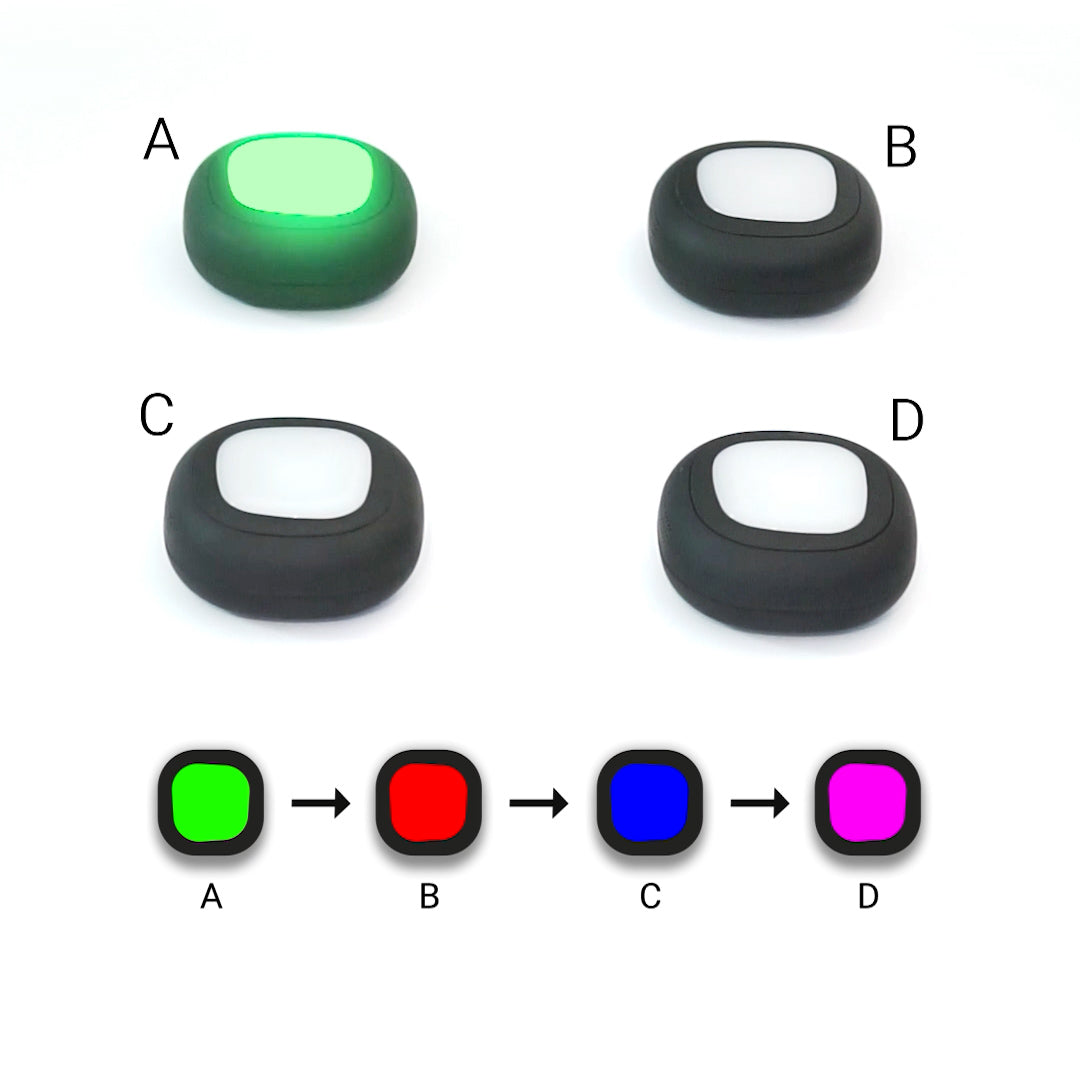
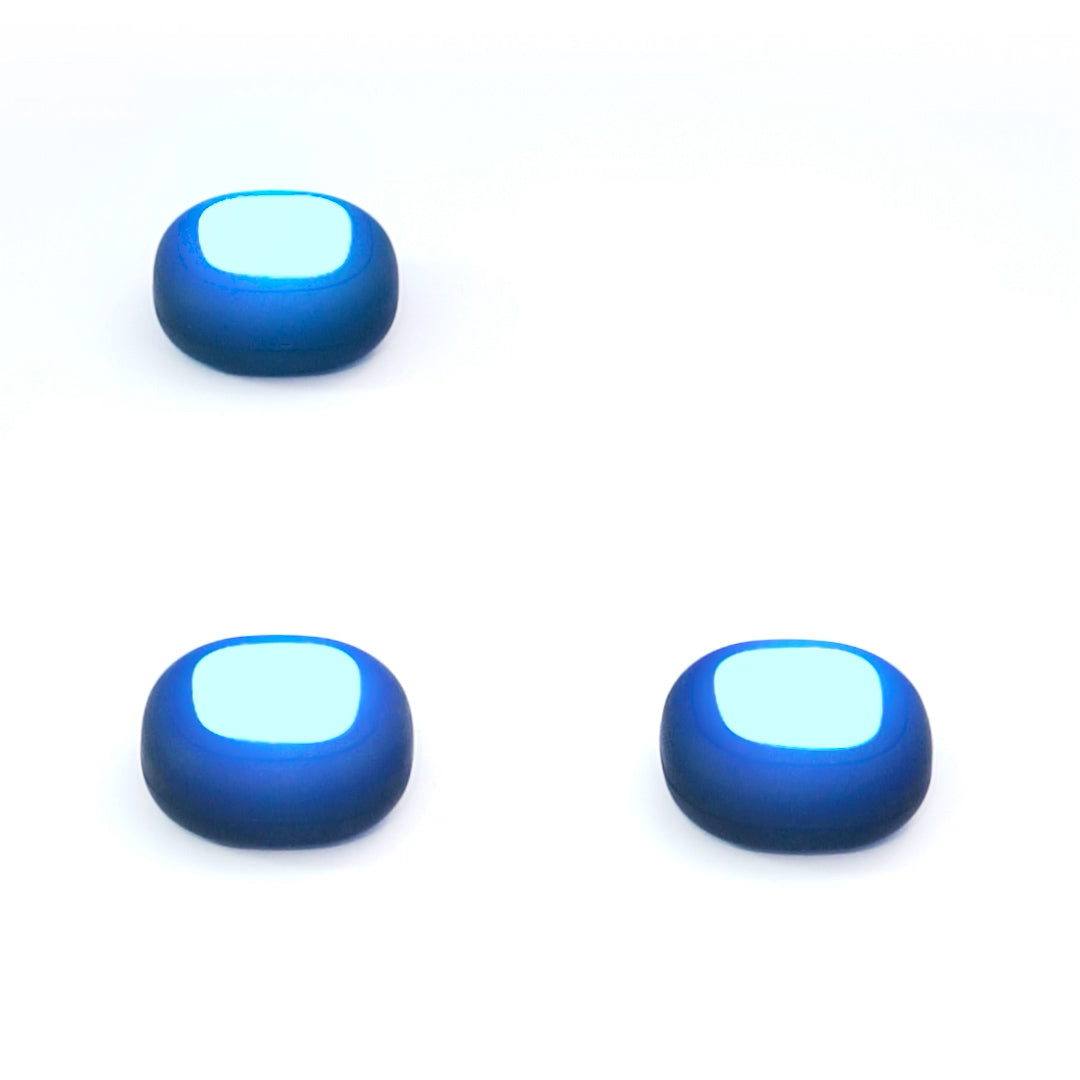
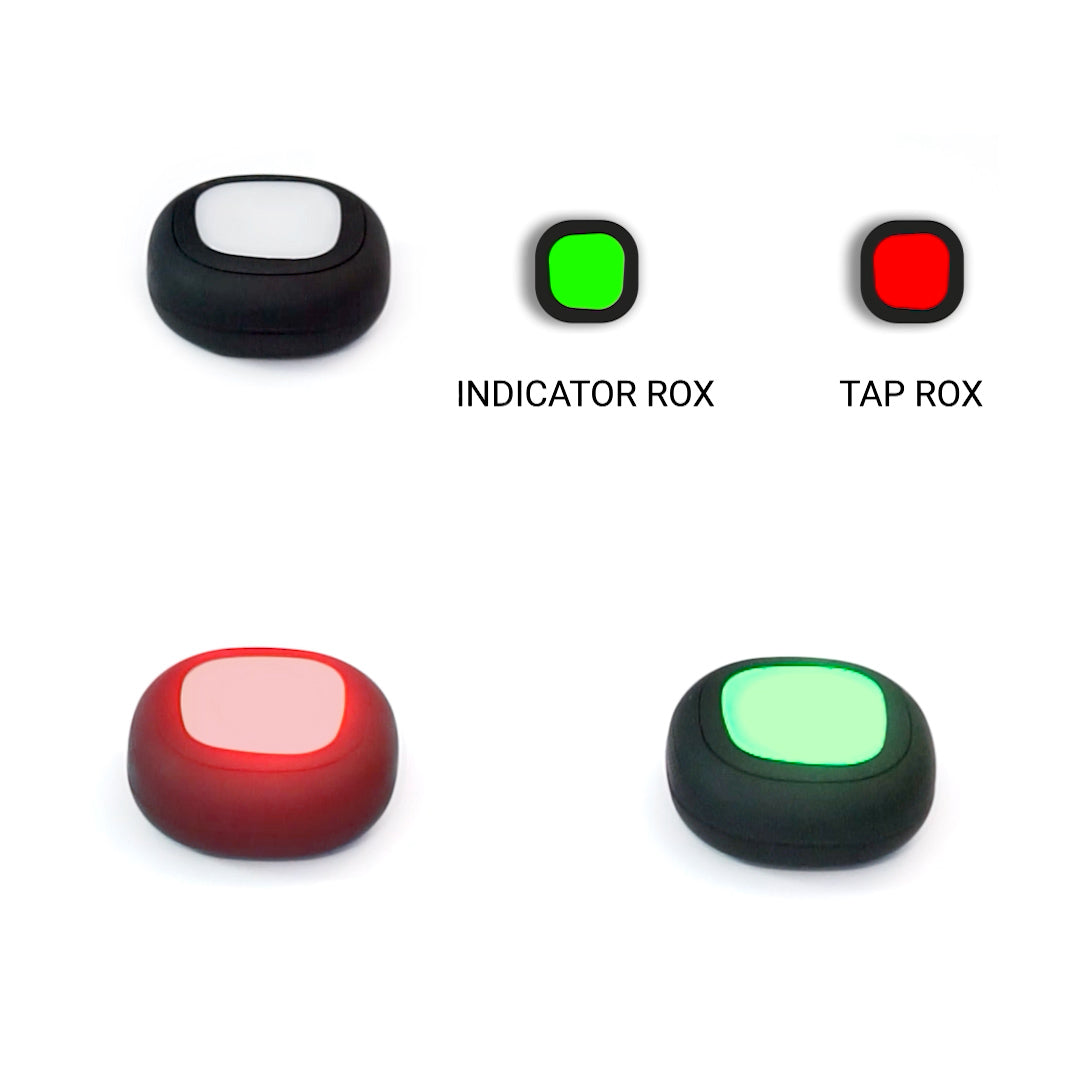
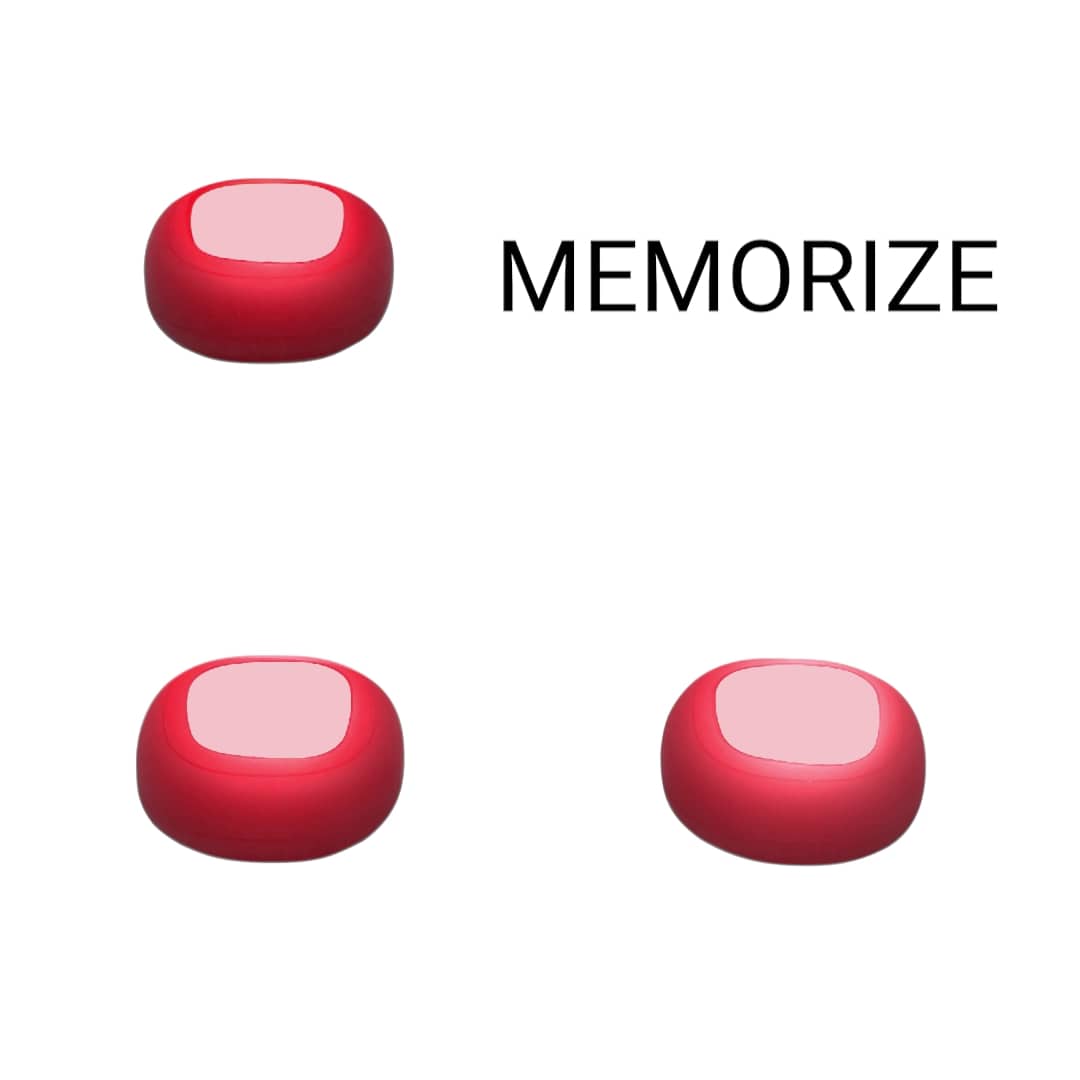
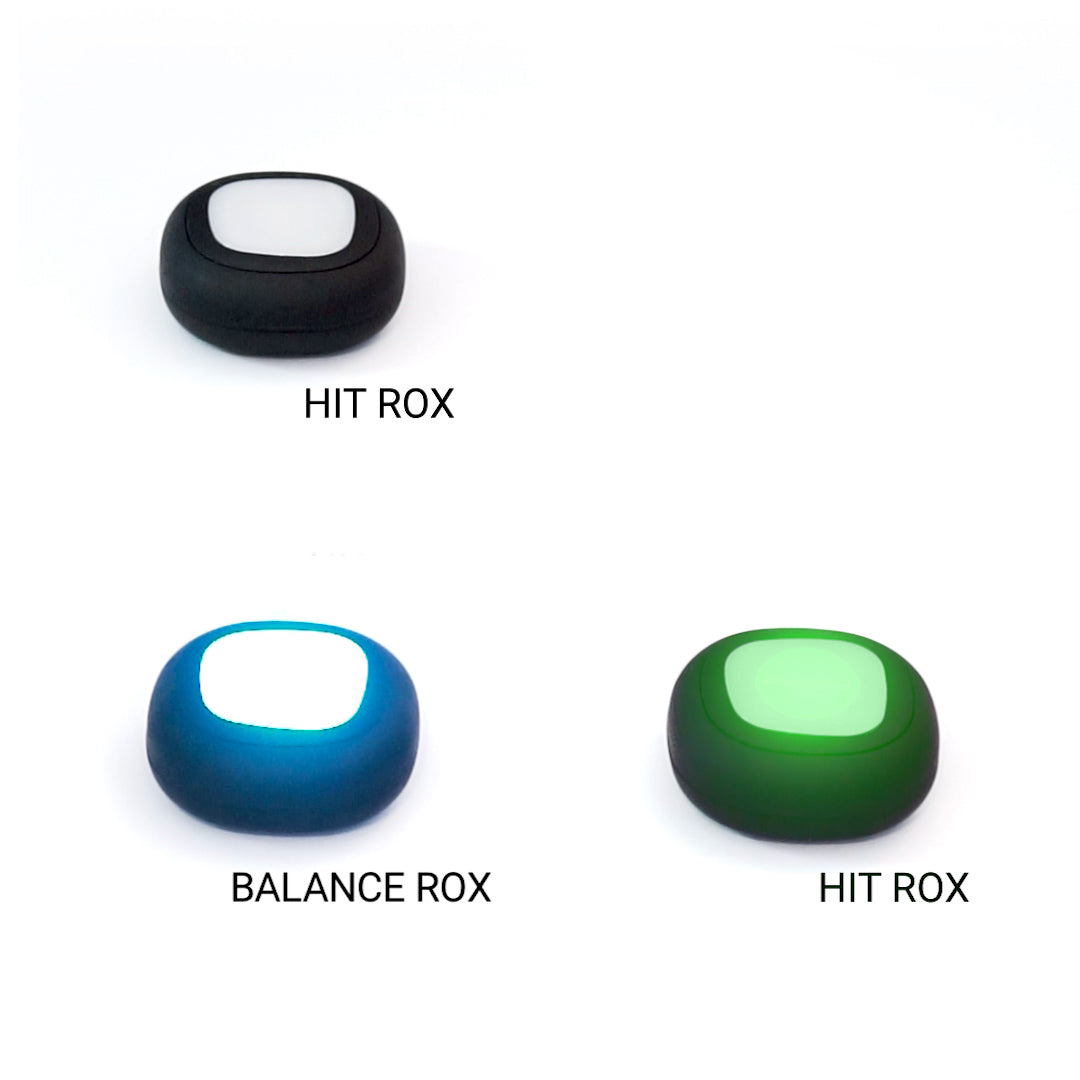
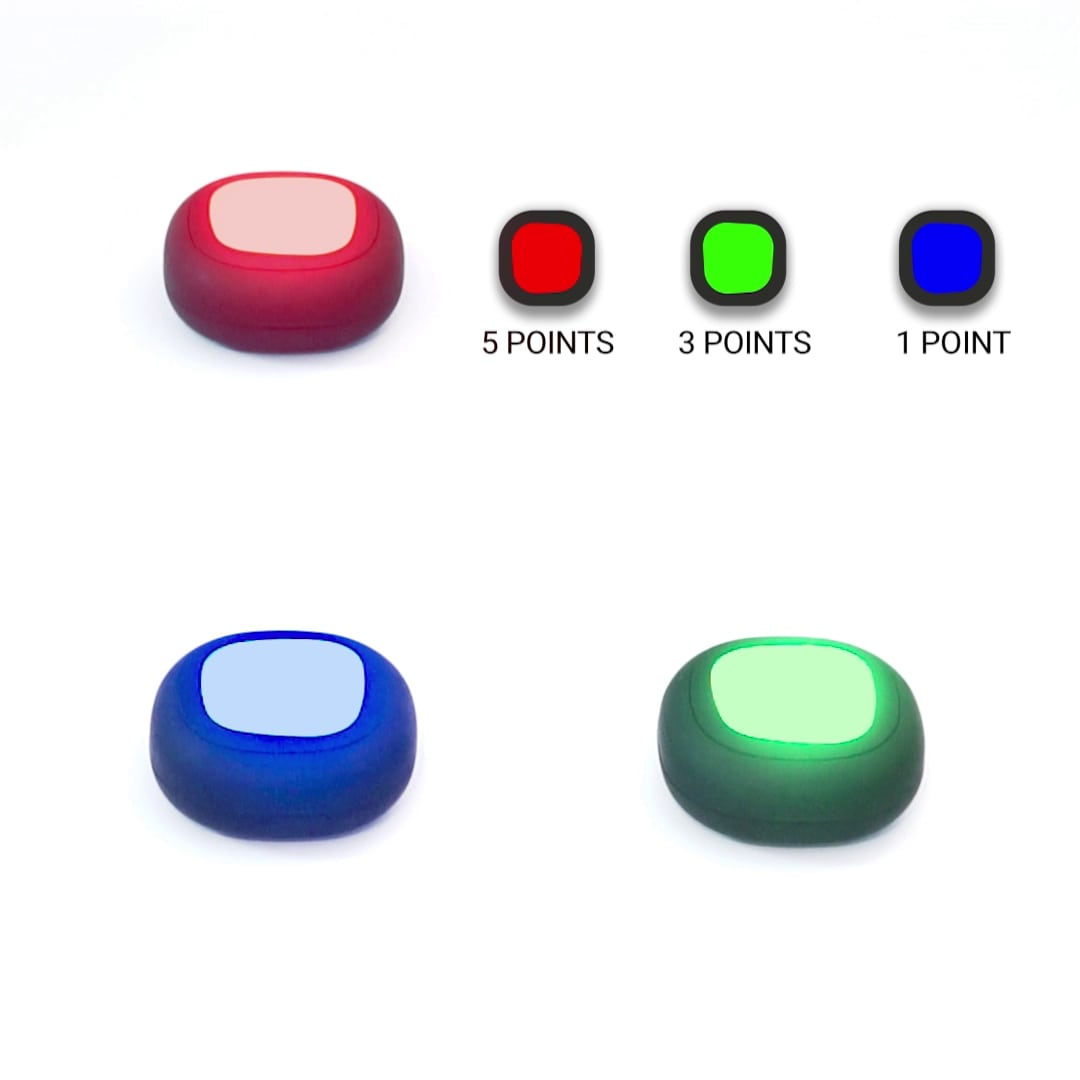
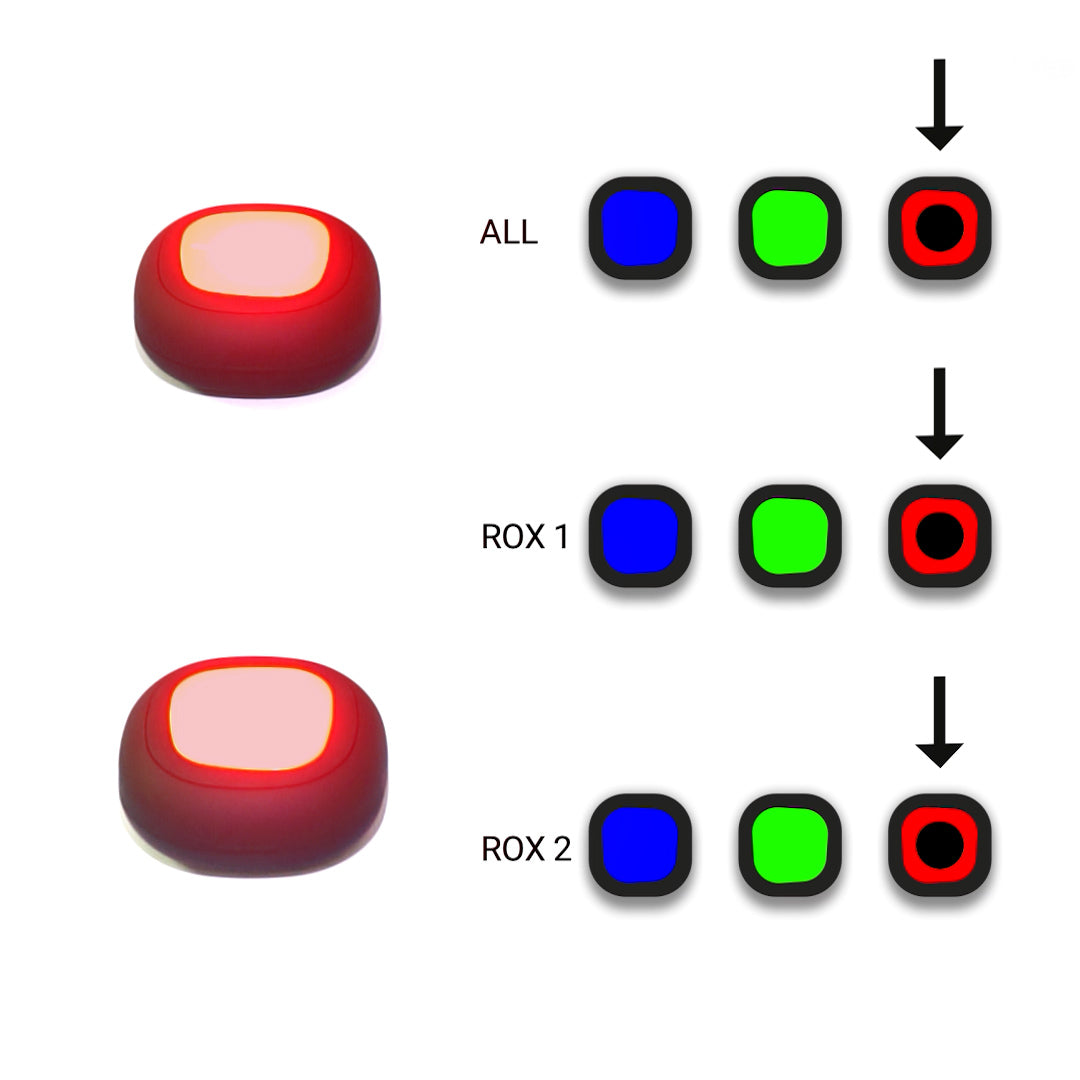
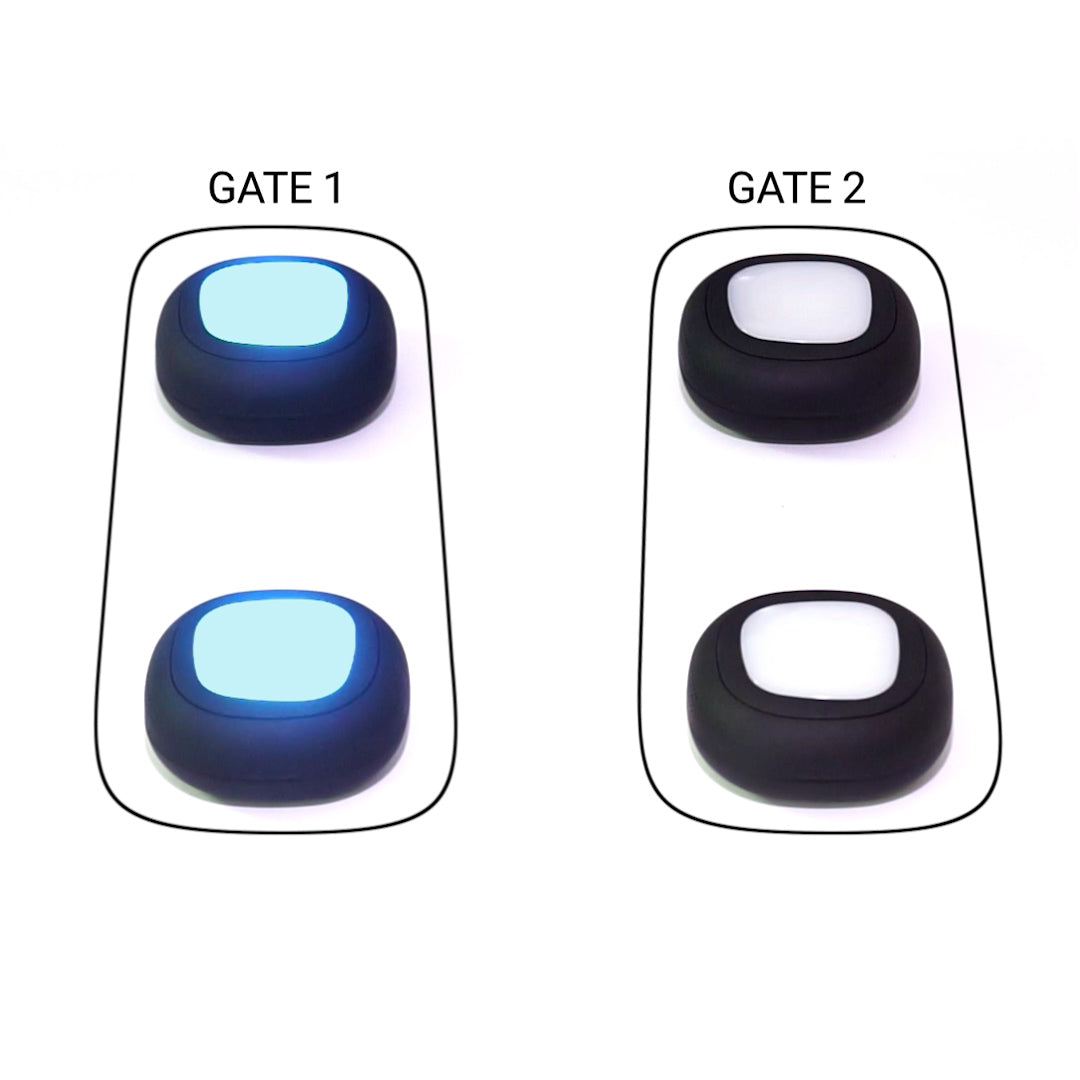
Discover our Unique Settings



ROX TOUCH BASICS
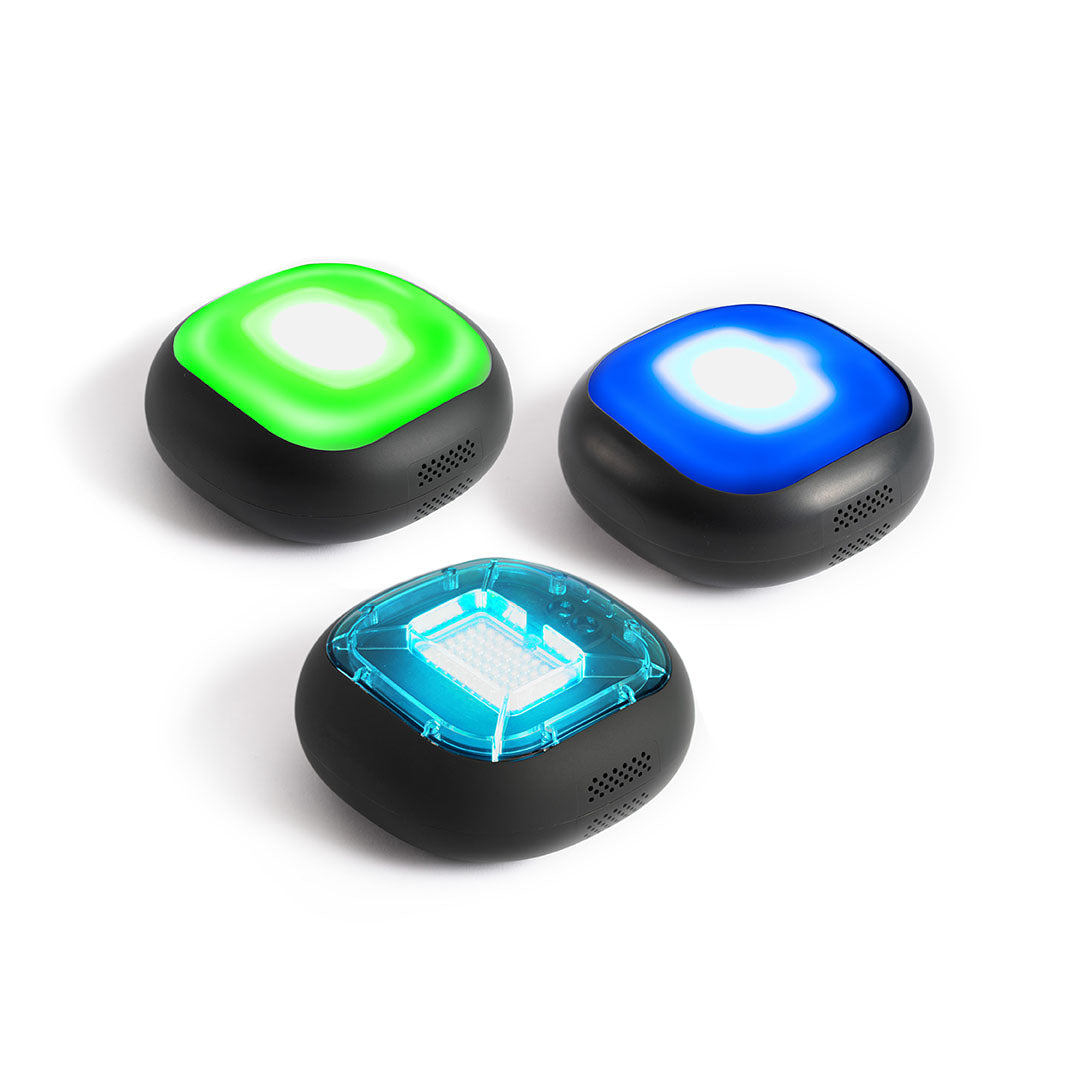
ROX Touch uses light, sound, and vibration to create randomized training scenarios that develop cognitive-motor skills and boost engagement across all skill levels.
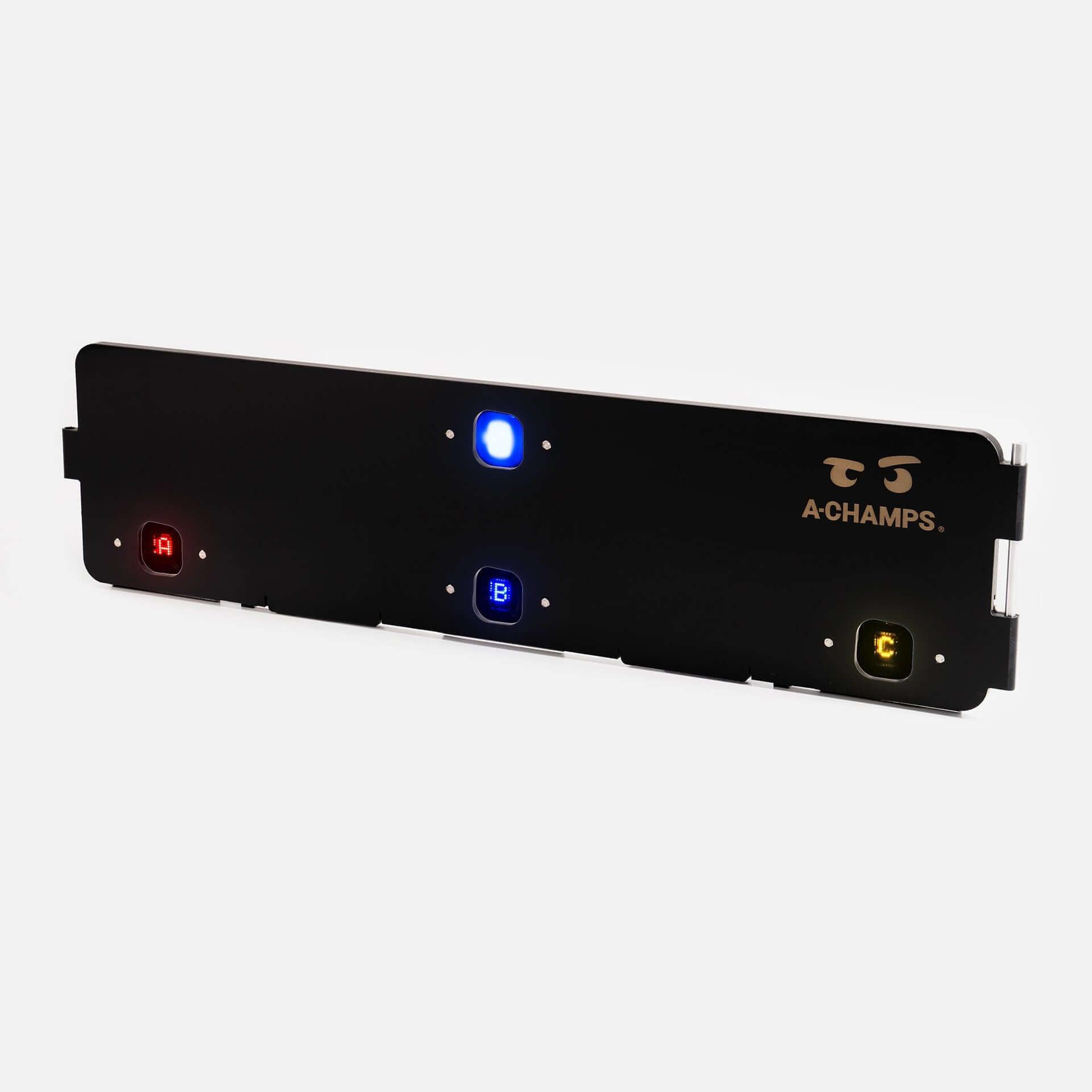
Some difference to highlight is that ROX Touch has sound, which develops acoustic perception and also vibration. For example, when using the balance feature, it gives the person instant feedback when unbalancing by vibrating.It also has a stronger connection between the ROX Touch and the mobile allowing up to 80m, and a connection of up to 24 devices compared with a maximum of 12 from the competitors.The tap sensor of ROX Touch and ROXPro has 12 levels of sensibility that lets you decide if you want a gentle touch or a punch. A-Champs also has ROXProX Laser with a laser sensor (up to 1.5m laser) which allow more natural movements, and symbols (letters and numbers) for more cognitive challenges.
The ROX Touch pods and training system is based on a new proprietary training methodology created by A-Champs, called Multi-Sensory Neuroplasticity Training MSNP™. The MSNP™ methodology is rooted in the concept of PERCEIVE, PROCESS, REACT, and built with randomized light, sound, and vibration signals.
Its holistic training approach increases both cognitive and physical abilities at the same time. This kind of training shows superior training effects because it stimulates the development of new and stronger neural pathways in the brain, which leads to an improved connection between your cognitive and physio movements.
Please, check our science behind the page for details.
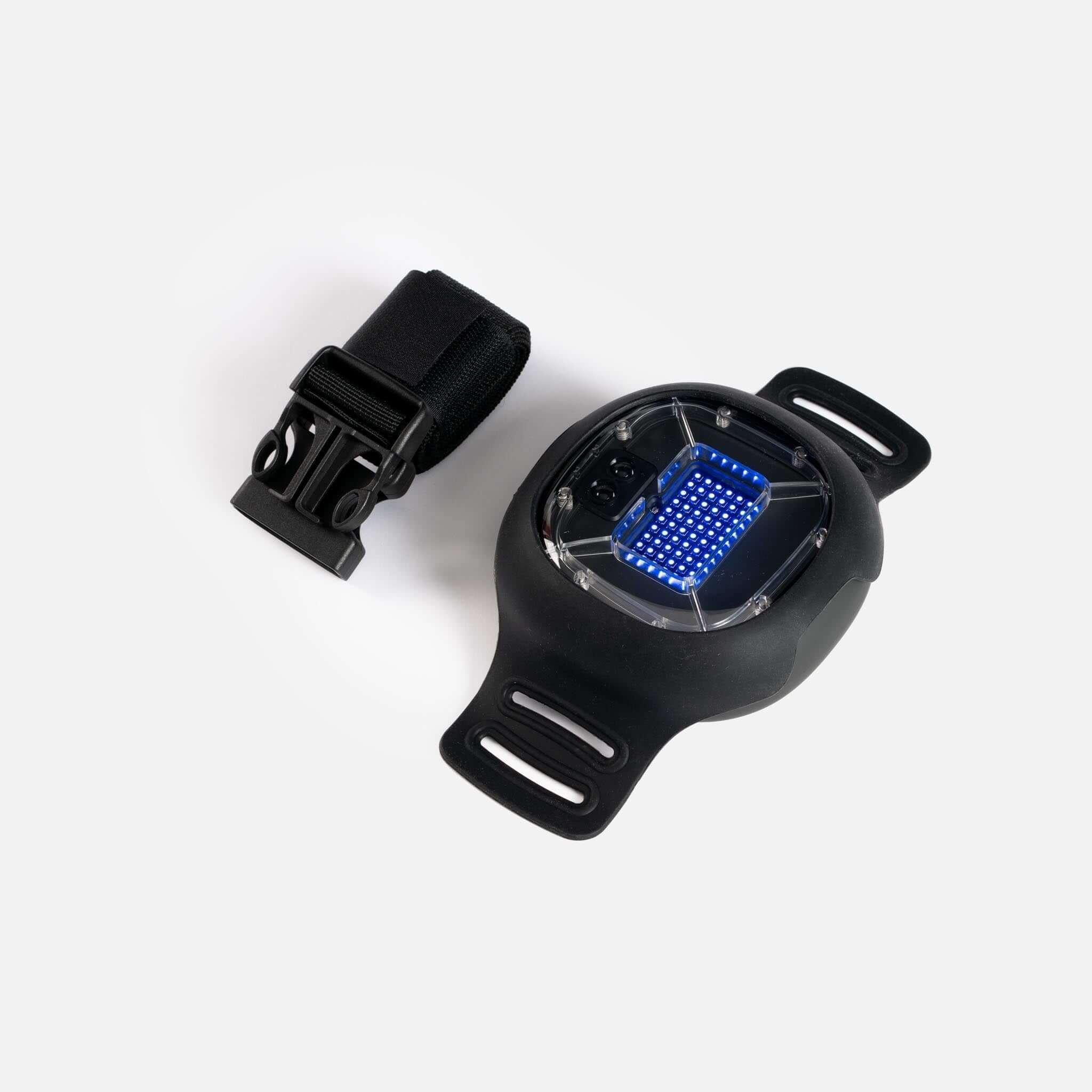
The ROX Touch are made of jet-fighter material meaning it’s ball, punch, and kick-proof. We know that athletes will be rough with them, so we made them extra strong. When constructing the shape, stability considerations were key. Athletes can step on the ROX Touch and hit it with different projectiles. The material selection supports our stability and quality focus. We used super reliable (and safe) materials.
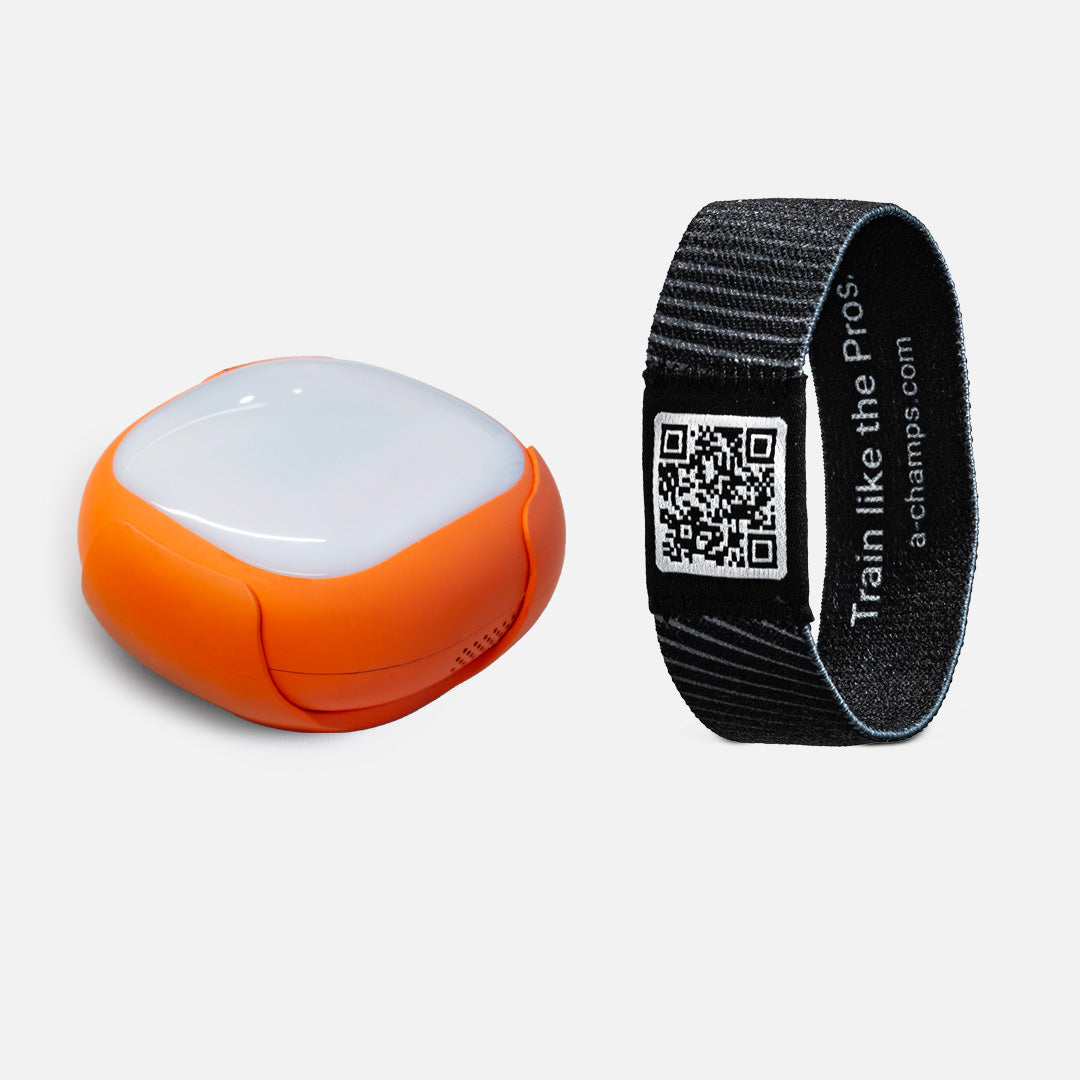
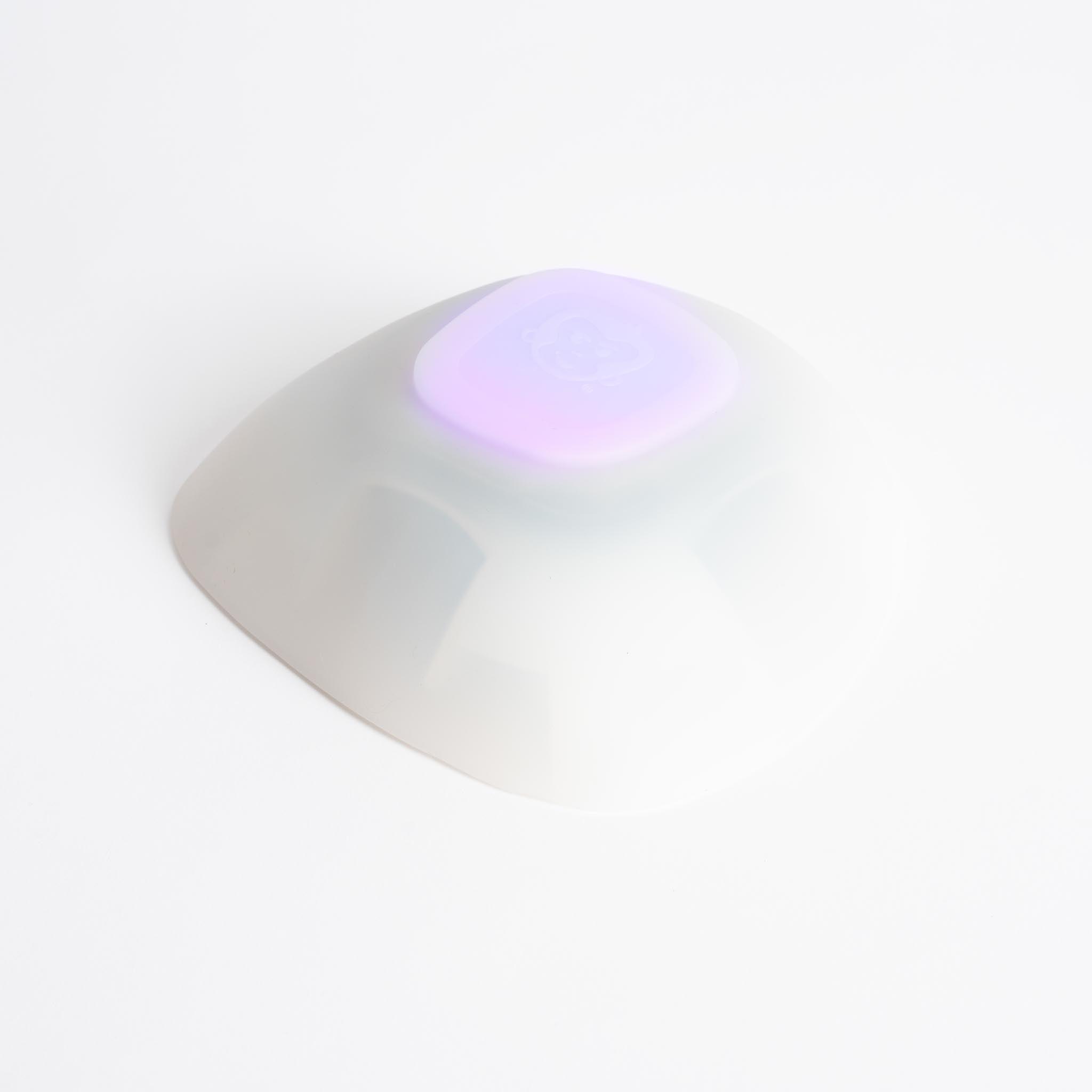
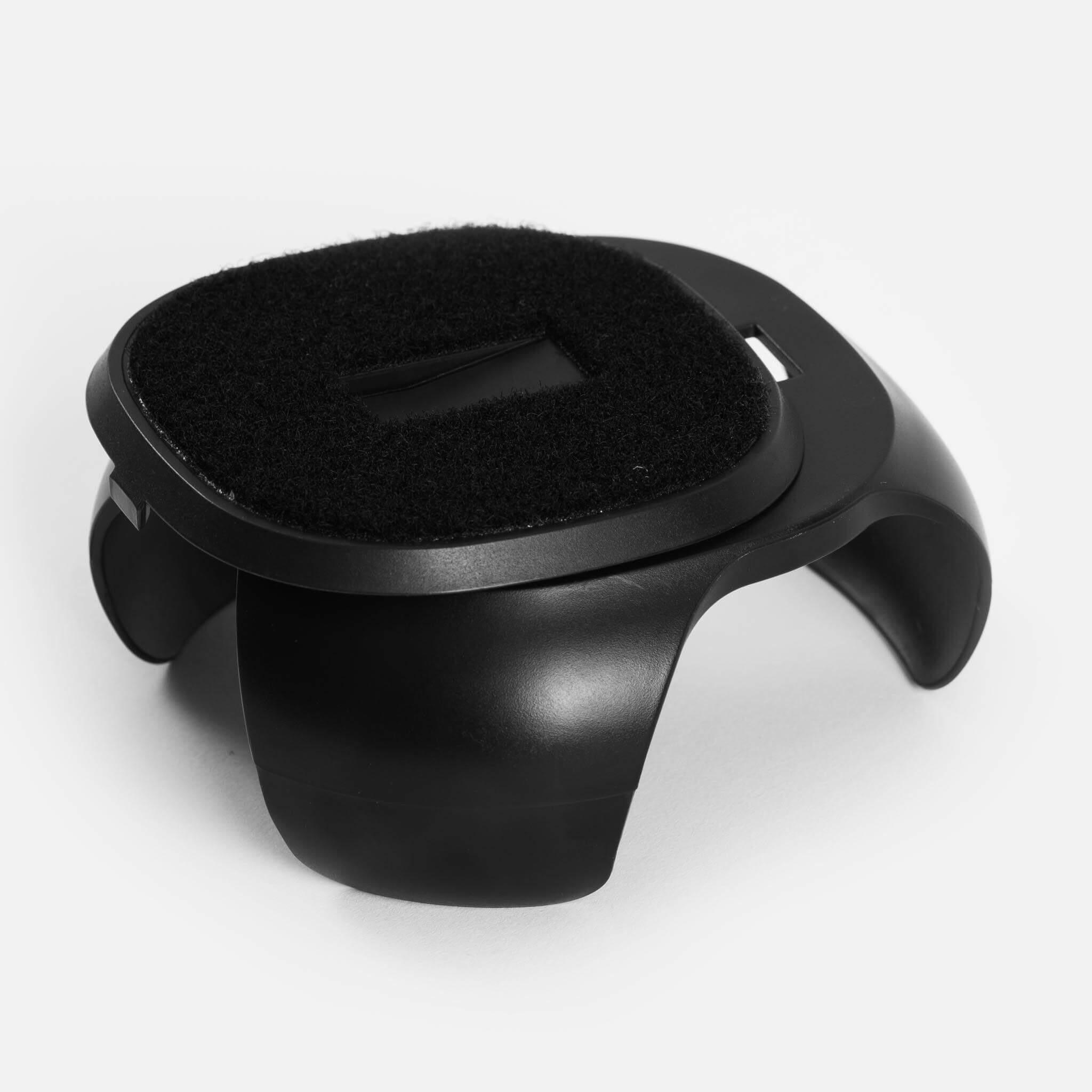
The ROX Touch are made to last. The top of ROX Touch is made of the same material as jet fighter canopies (PC), and the body is finished with ultra-strong plastic (ABS mixed with PC). The holsters are made out of silicone. All materials are virgin (=not recycled), which means they are safe and comply with the strictest chemical standards.
All generations and versions of ROX Touch are water repellent.
The new generation of ROXPro and ROXProX Laser conform to IPX7, the ROX model in conformance with IPX5.
APP AND MORE
Look for ROXPro on both IOS and PLAY STORE.
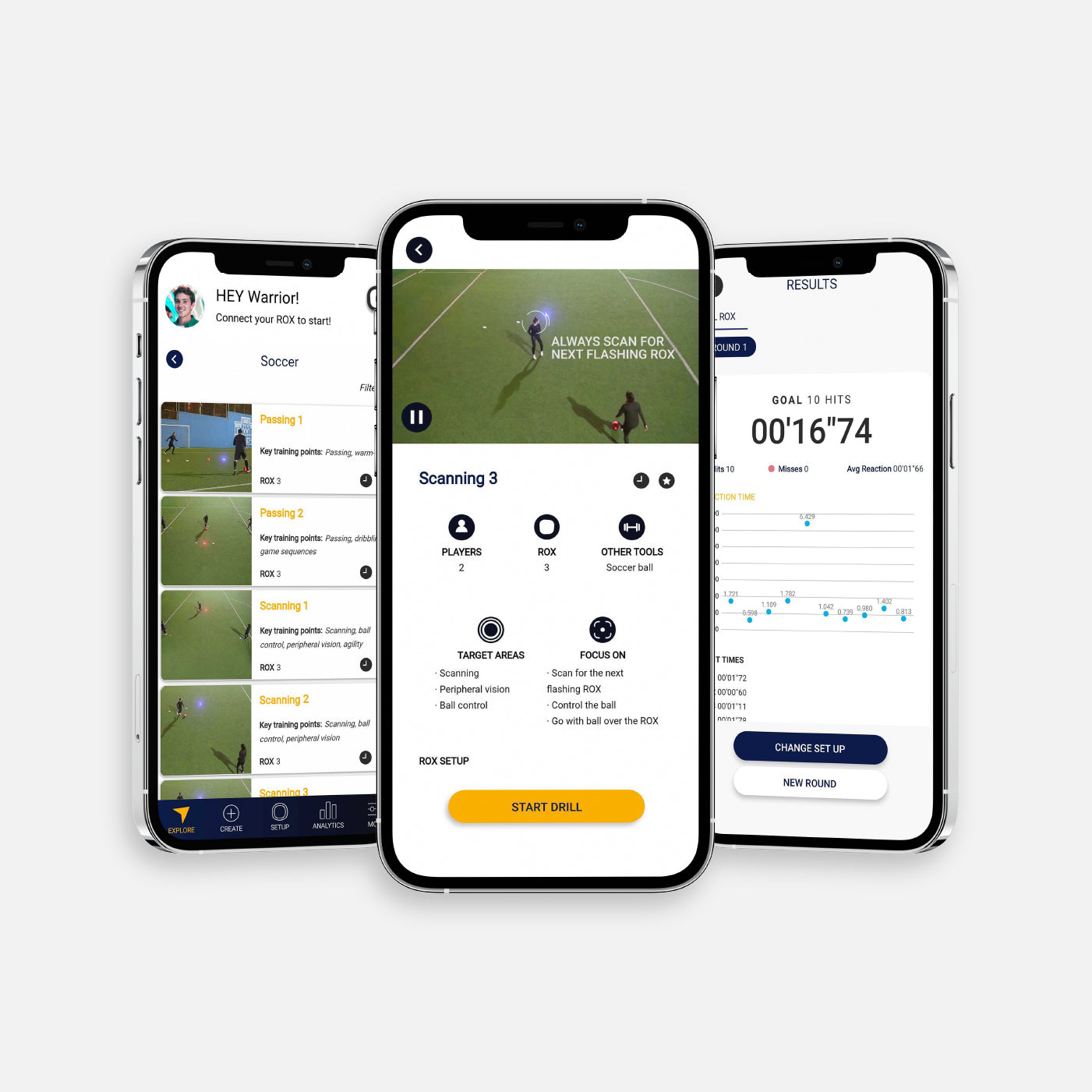
There are currently 10 different programs that you can modify yourself so that you can create your own exercises. All programs are developed based on our patented MSNP training methodology.
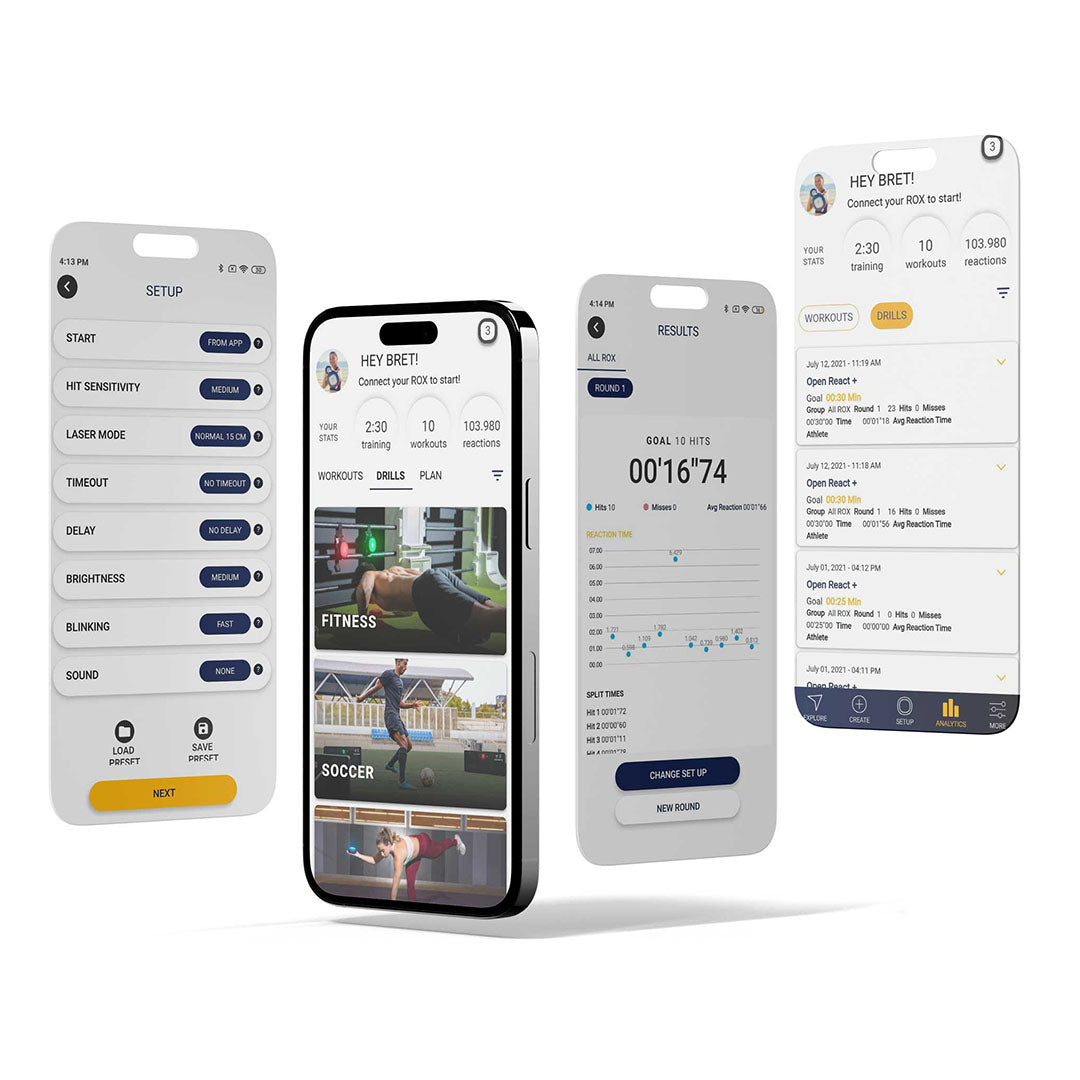
With the ROXPro app, you can easily and efficiently integrate the ROX Touch into your training sessions. The program settings are 100% customizable to your needs. Different programs serve different purposes, but the basics are the same for all programs:
- Choose a training target: time or number of hits
- Choose whether you want to do different rounds, or just one
- Choose from 8 flashing colors
You can then optionally change the following settings:
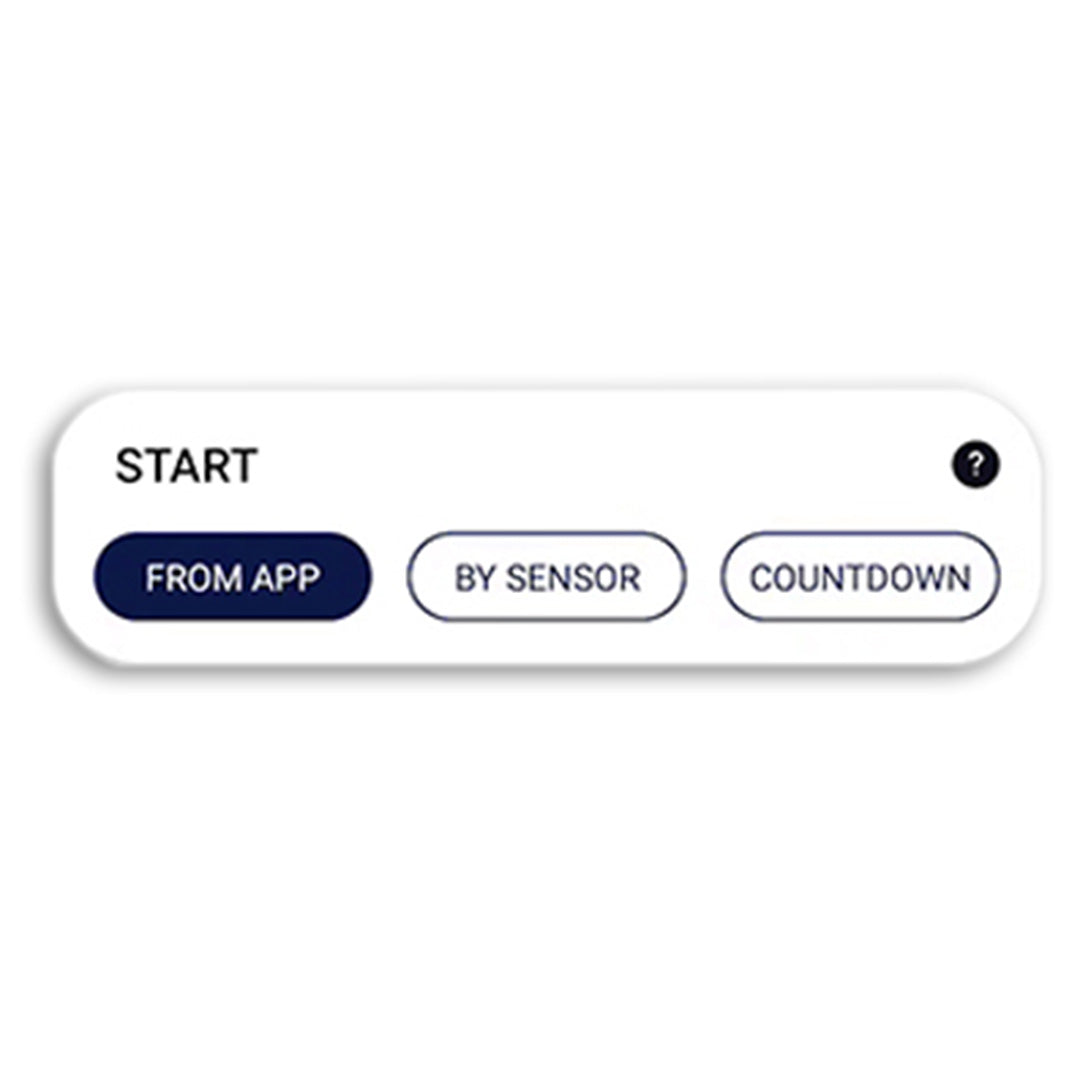
- Start mode
- Sensor sensitivity (ROX Touch and ROXPro)
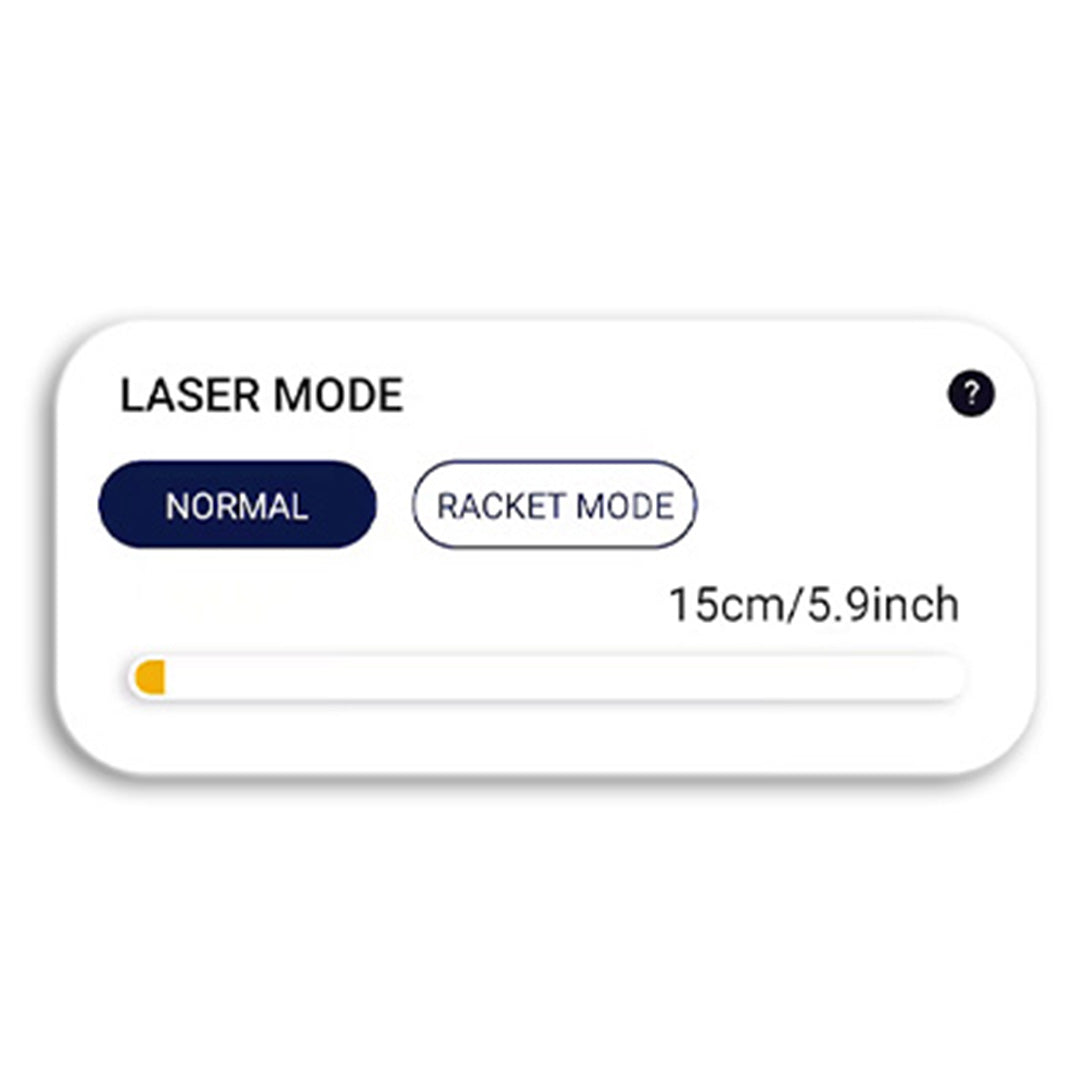
- Laser distance (ROXProX Laser)
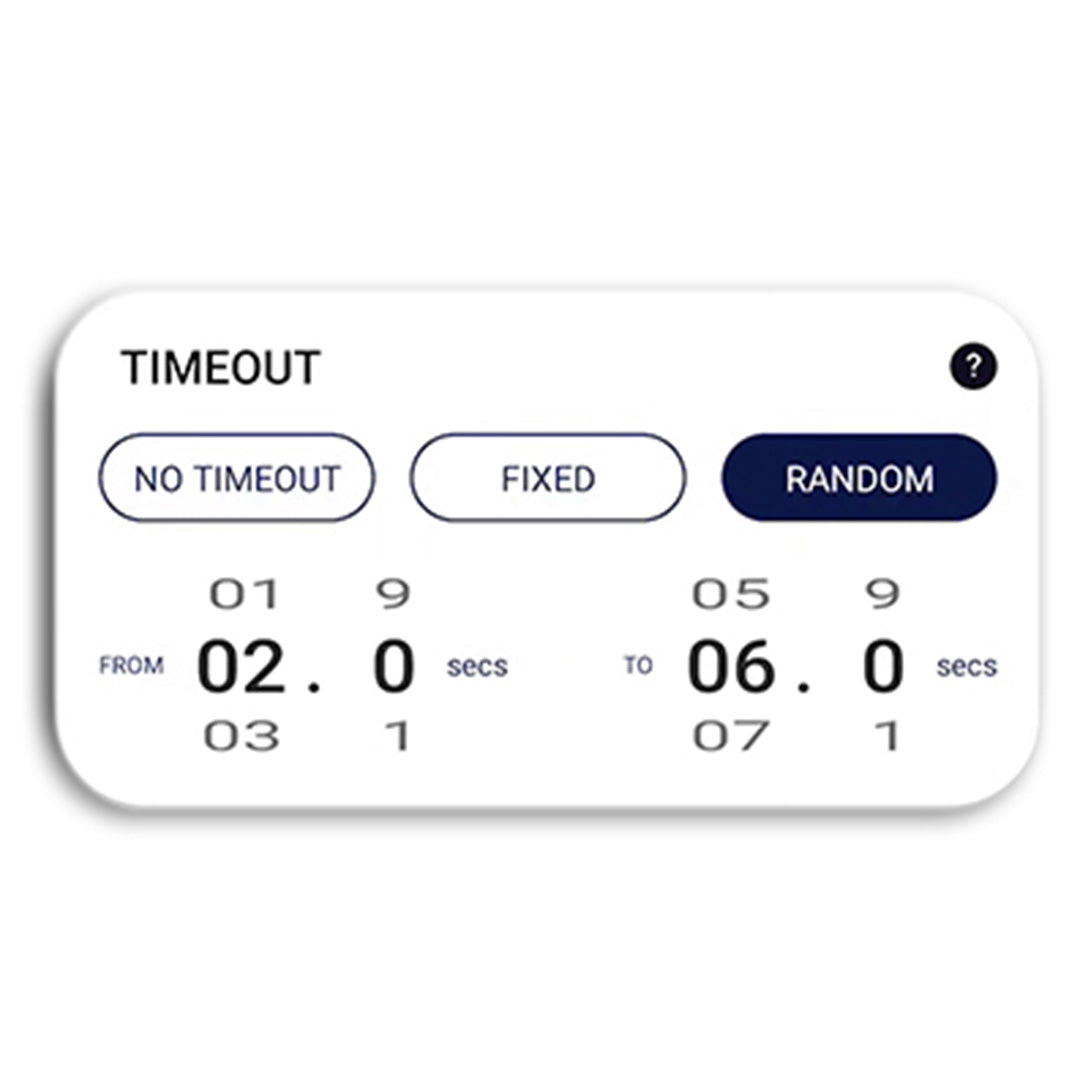
- Timeout
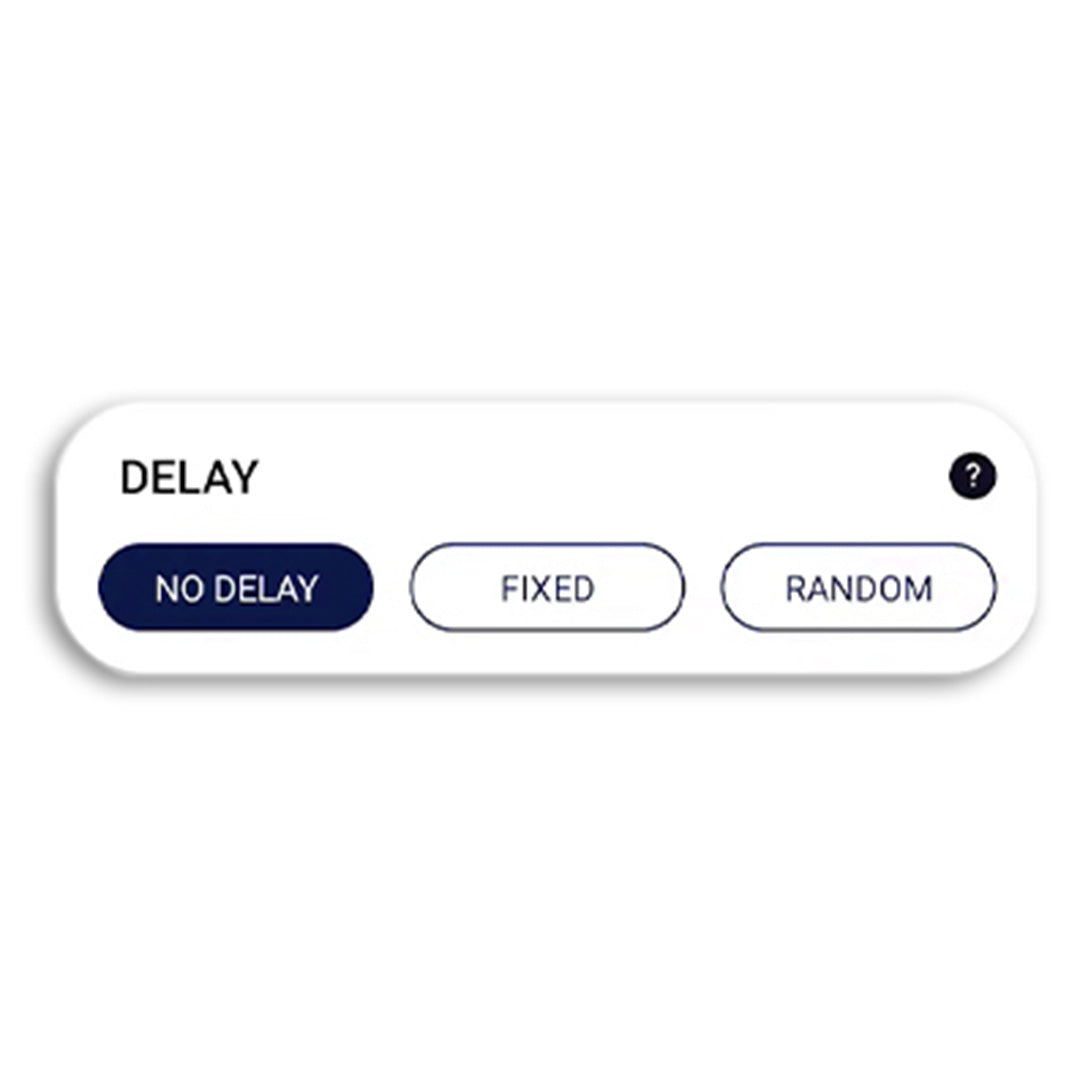
- Delay
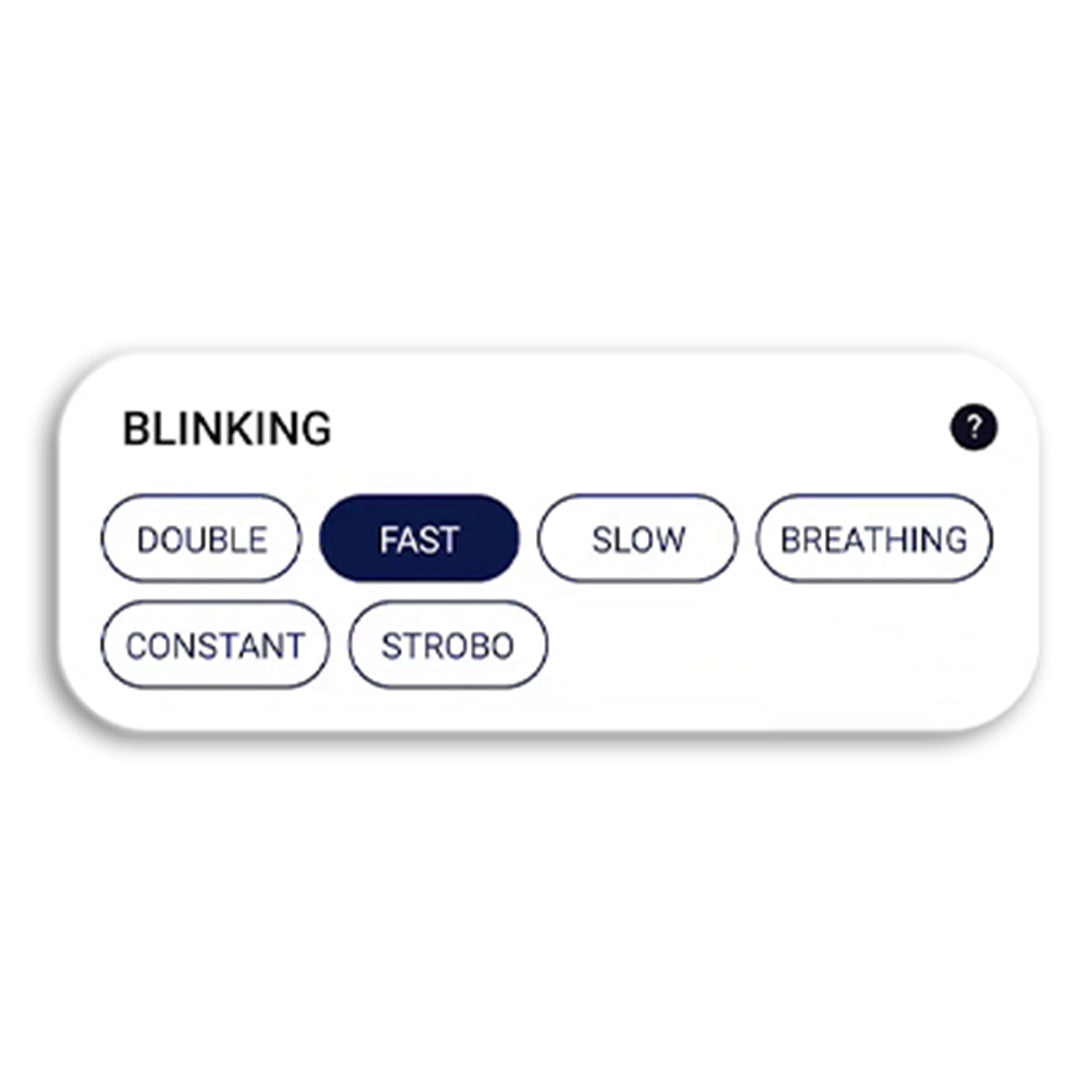
- Flashing speed
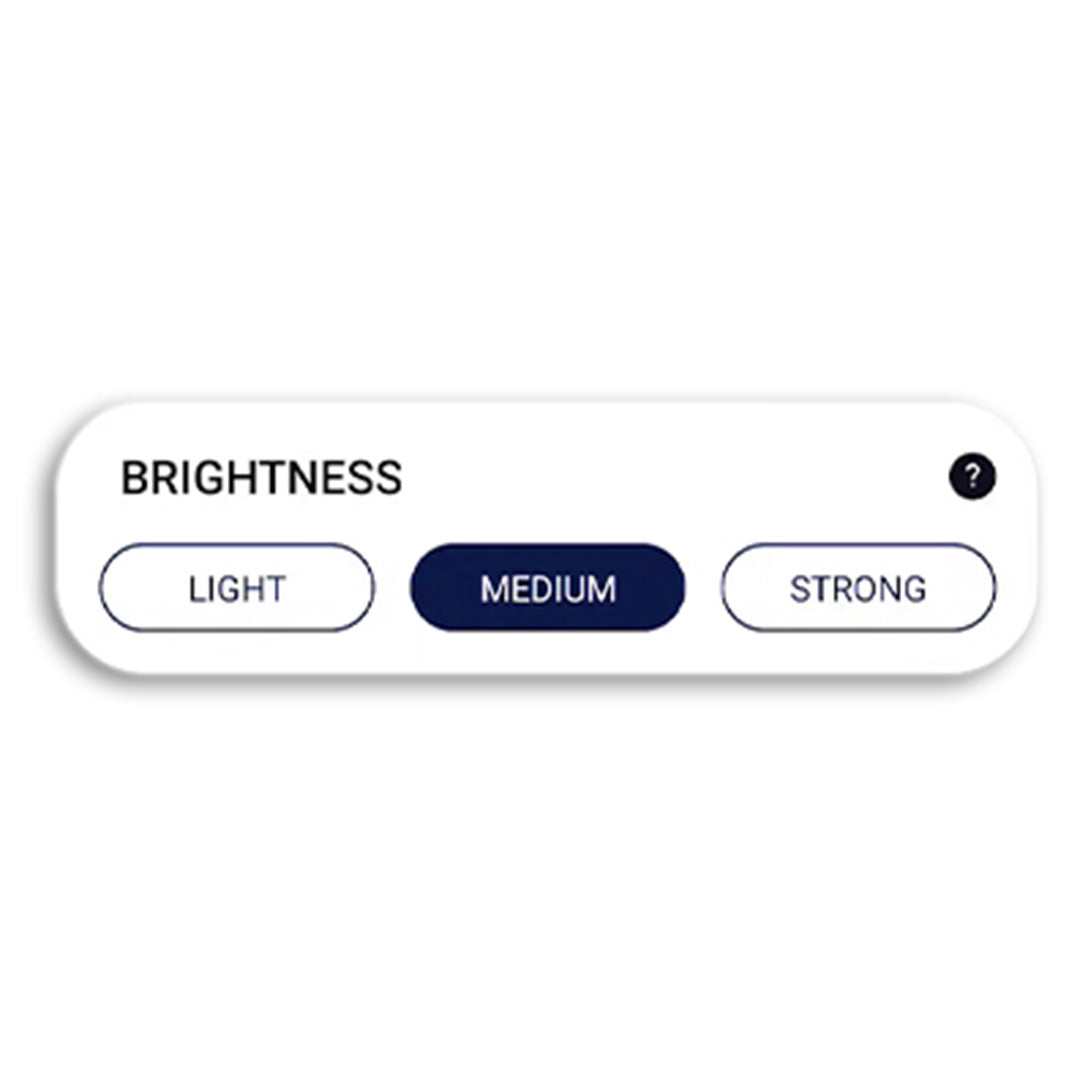
- Brightness
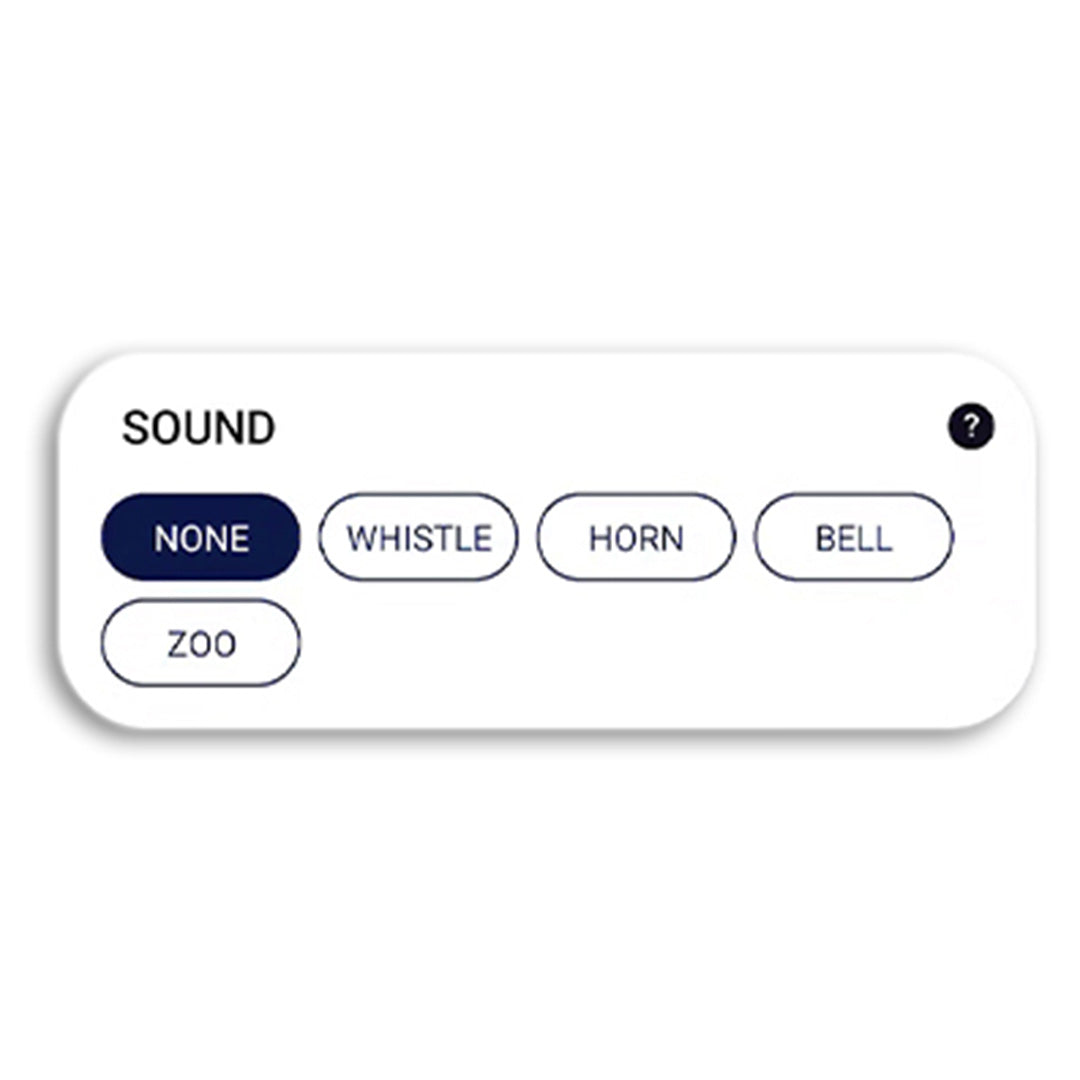
- Sounds
As soon as you have selected the correct settings, you can save them as your own exercise (preset) so that you can start the exercise directly the next time you train.
From time to time, we release firmware updates that update the ROX Touch. We will inform our users as soon as updates are available.
If you want to update your ROX Touch, go ahead like this:
- Connect your phone to a stable internet connection
- Open the ROXPro app
- Connect all ROX Touch (max 6 at once)
- Go to the menu item "More"
- Tap on "Update ROX Touch"
- The app then recognizes your ROX model and flashes to indicate which model you need to tap on
- Then tap “Update” on the next screen so that the update starts
- The update can take up to 10 minutes per ROX Touch
- Do not close the app during the update
- After the update, a message appears "Your ROX Touch are now more awesome"
- Now go back with the arrow key, the ROX Touch will switch off
- Turn on the ROX Touch again, synchronize it and your training can continue.
The maximum number of ROX Touch that can be connected depends on the ROX Touch version:
ROX Touch: 6
ROXPro: 24
ROXProX Laser: 24
However, the number also depends on your phone. On phones with less CPU (memory power), it may happen that not as many ROX Touch as above mentioned can be connected.
The connection range depends on the ROX model:
ROX Touch- 20 meters
ROXPro - 40 meters
ROXProX Laser- 40 meters
However, range also depends on your phone. With phones with less CPU (memory power), it may happen that the range is not as great as stated above.
ROXPro app is available in English, German and Spanish.
If you would like to see the app in another language, contact us at: hey@a-champs.com
The APP language corresponds to the current language settings of your phone. If you want to change the language, you must change your phone's language setting via your phone's system settings.
ACCOUNT
Version 1:
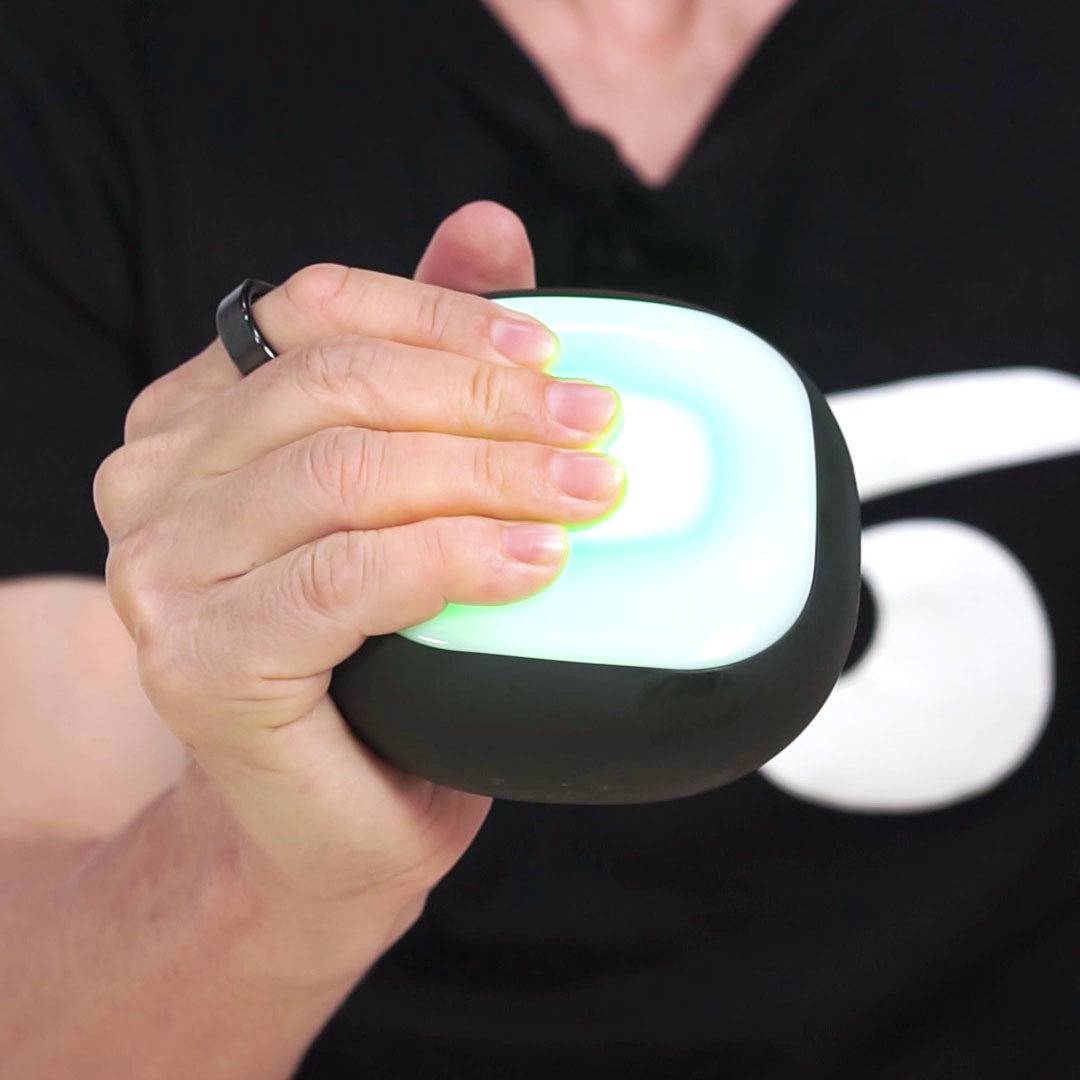
Put the palm of your hand over the power button for at least 5 seconds until ROX Touch vibrates and flashes green. Once it does, the ROX Touch is on.
Version 2:
Automatic turn on function:
If the power adaptor is plugged in, ROX Touch/ROXPro/ROXProX Laser will power on after removing from the charging station
Turn on manually:
Put the palm of your hand over the power button for at least 5 seconds until ROX Touch vibrates and flashes green. Once it does, the ROX Touch is on.
The power button is automatically deactivated after switching on, so that the ROX Touch cannot be switched off manually during training.
There are 2 ways to turn the ROX Touch off:
1. Automatic turn off after a certain time:
In general, the ROX Touch switch off automatically after a certain time. You can choose after how many minutes the automatic switch-off should happen.
1.1. Go to the menu item "MORE"
1.2. Tap on "TURN ON/ TURN OFF OPTIONS"
1.3. Vary the “BEFORE USE” time to choose the amount of time the ROX Touch stays on after you take it out of the charging station (this option is only available for the new ROX Touch/ROXPro /ROXProX Laser generation).
Vary the “AFTER USE” time to choose the amount of time the ROX Touch stays on after it was last touched.
2. Switching off the ROX Touch manually using the app:
2.1. You can also go to "ROX Touch STATUS" to turn off each ROX Touch separately. To do this, tap on the different ROX Touch to identify them. Then tap on the "3-dot icon", and then select "Turn off ROX Touch".
2.2. In "ROX Touch STATUS" you can also select "TURN OFF ALL ROX Touch" so that all connected ROX Touch are turned off.
1. Fully charge your ROX Touch before using it for the first time
2. Turn on Bluetooth on your phone
3. Download the ROXPro app and create an account
4. Go to "SET UP" in the menu bar to get to the "SETUP" page
5. Tap on the "ROXStatus" icon
6. Select "SYNCHRONIZE ROX Touch"
7. Turn on your ROX Touch
8. The ROX Touch will then flash blue and yellow
9. Tap the ROX Touch so they change color from yellow to green. They are now connected to your phone
10. When all ROX Touch are connected, type "LET'S GO"
11. You can then check all connected ROX Touch via the ROX Touch STATUS screen
12. Then select any program, exercise or workout and start your ROX Touch training
If a ROX Touch is connected to a phone, it is not possible to connect this ROX Touch to another phone. To achieve this, you must first unsynchronize the ROX Touch from the connected phone. Then you will be able to connect it to another phone. There are different ways to do this:
1) Turn off Bluetooth:
- Turn off the Bluetooth function on the first phone so that the connection is lost
- Then you can connect the ROX Touch to the new phone, following the above steps
2) Unsync via app:
- In the first phone, go to the “SETUP” menu item, then “ROX Touch STATUS”, then type “UNSYNCHRONIZE ALL ROX Touch” at the bottom. If you only want to unsync some ROX Touch only, tap on the "3-dot icon" of the respective ROX Touch and select "Unsync".
(To identify which ROX Touch is which, tap on the individual ROX Touch icons in the "ROX Touch STATUS" page, the corresponding ROX Touch will then flicker in red).
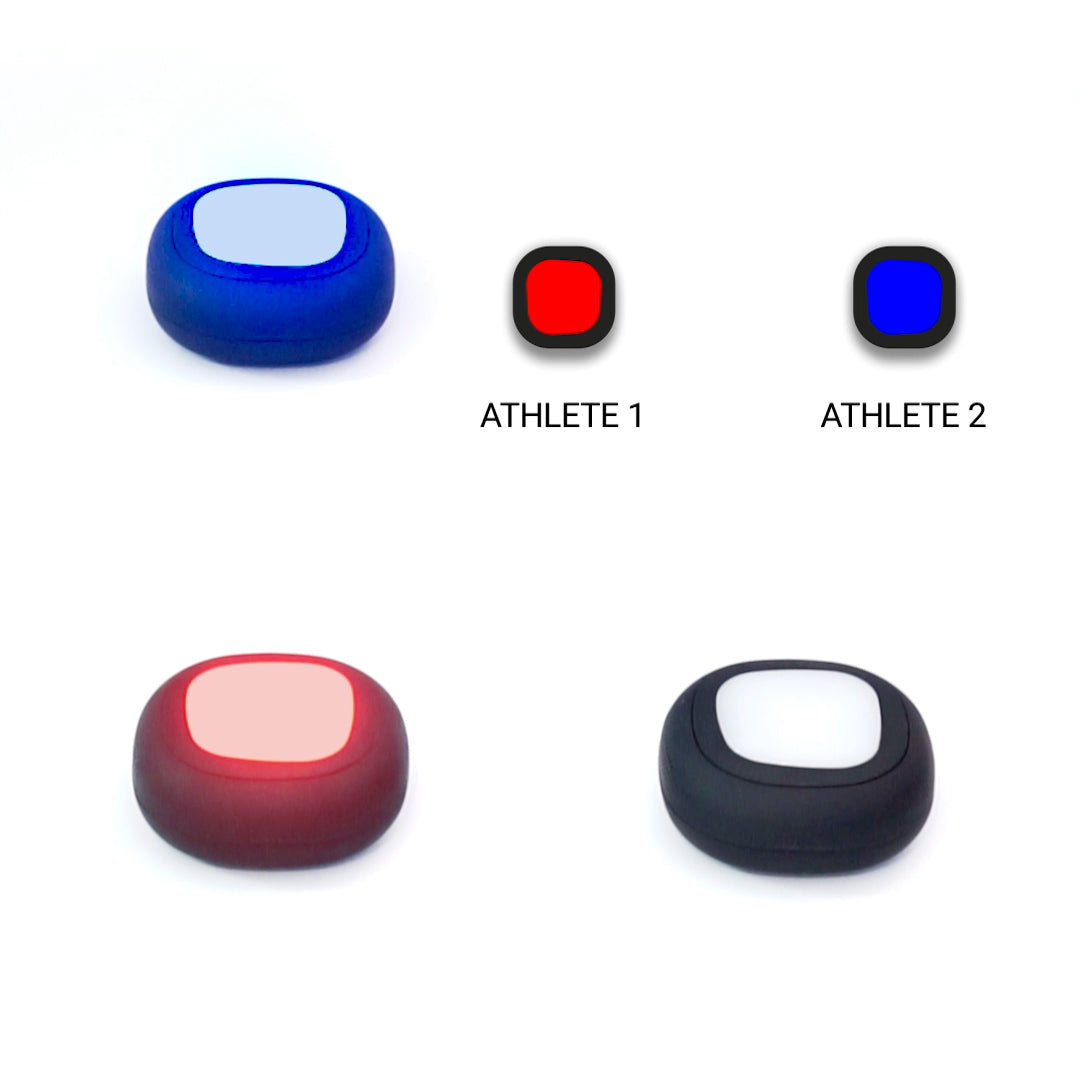
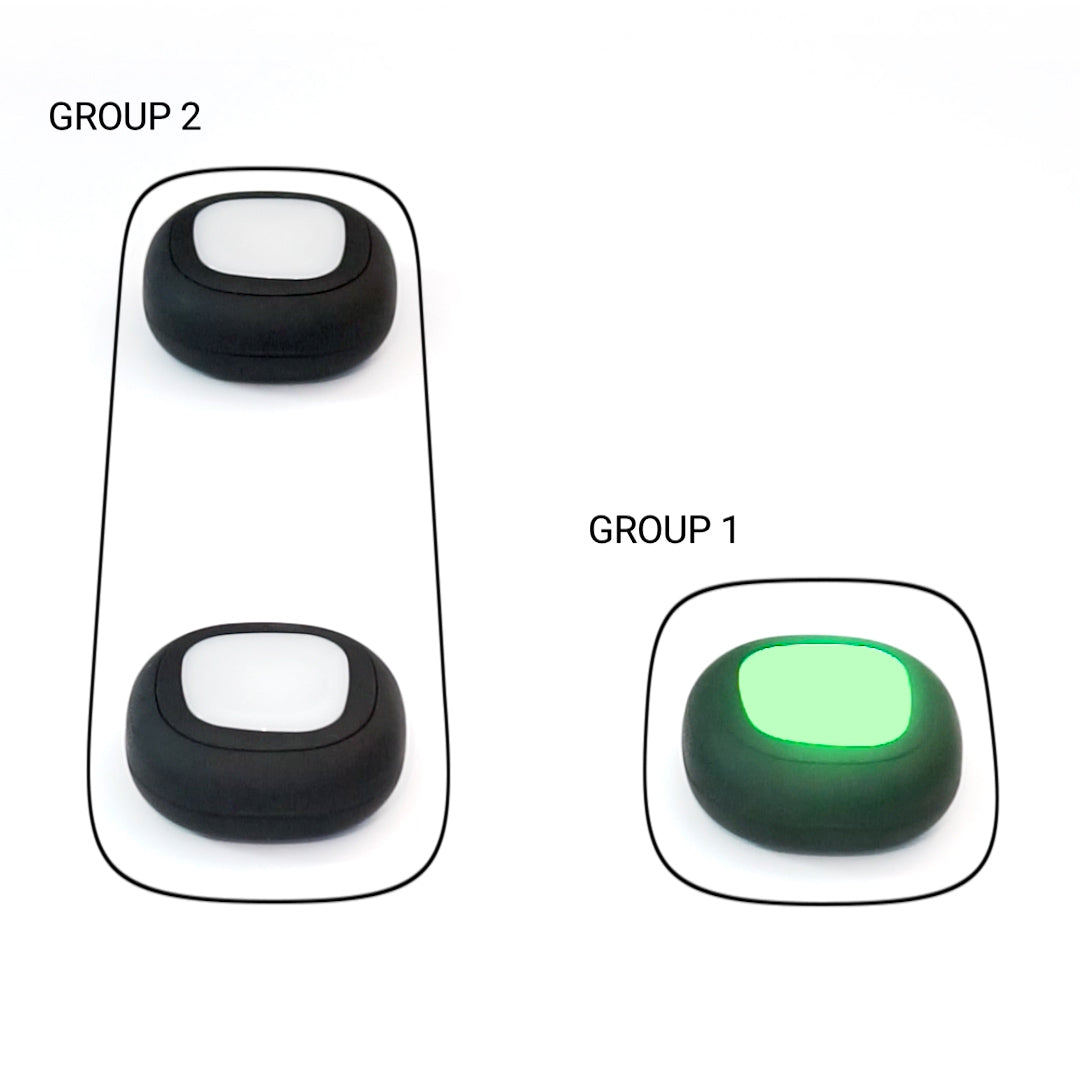
If you want to work with different groups, that all work in parallel with each other, you must use the grouping function. In principle, up to 4 groups can be formed.
● Make sure all ROX Touch are connected
● Tap SETUP in the menu bar, then tap "ROX Touch STATUS"
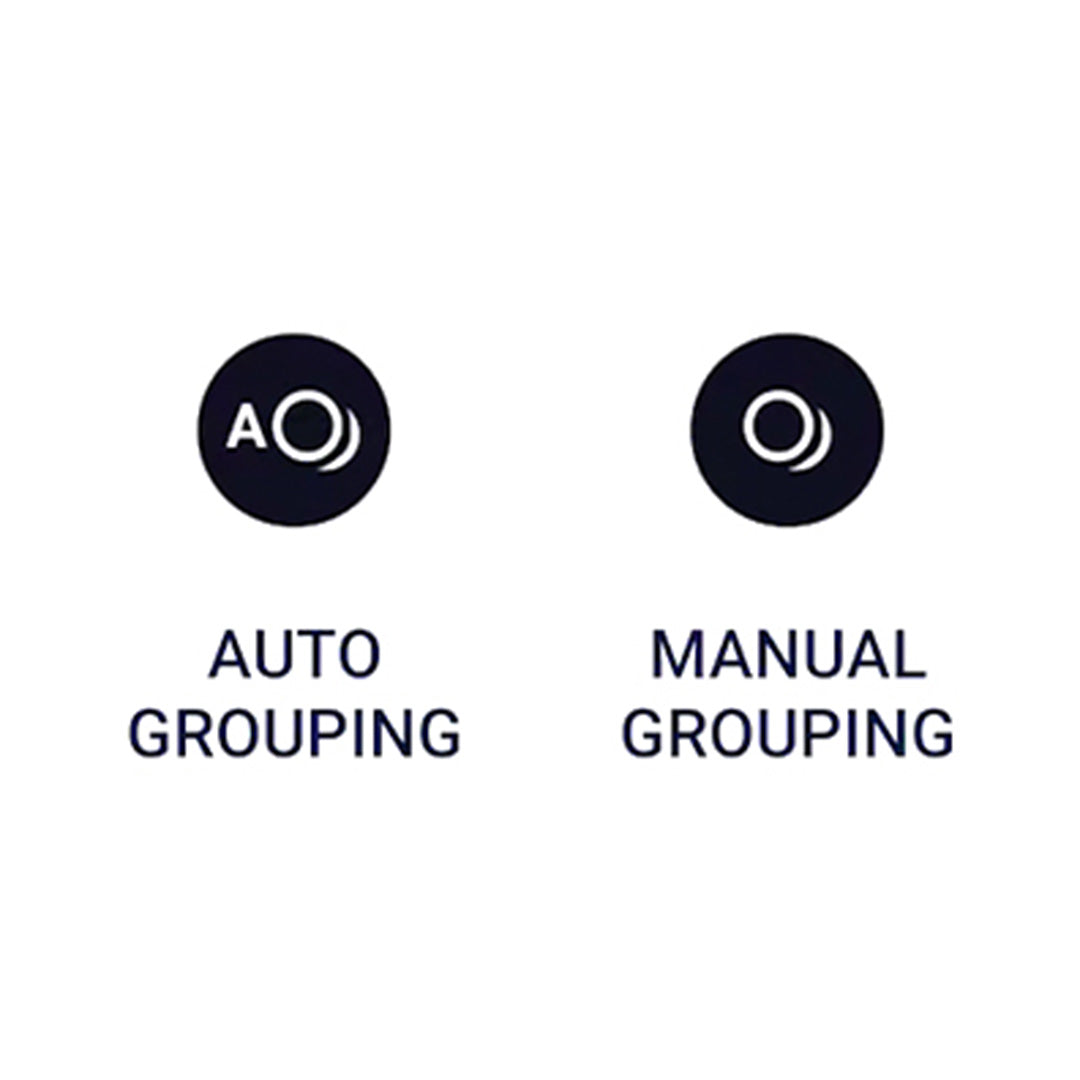
● Then select "Automatic grouping" or "Manual grouping"
● Select "Auto grouping" if you want the system to split the groups automatically
● Select "Manual grouping" if you want to assign the ROX Touch to individual groups manually by tapping
In both cases, once grouped, the ROX Touch will change color and start blinking in different colors. ROX Touch with the same color belong to a group.
● If you want to change the group membership of a ROX Touch, you can do this in the "ROX Touch STATUS" page by tapping on the "3-point symbol" of the respective ROX Touch and then selecting "Change group".
1. Tap SETUP in the menu bar, then tap "ROX Touch STATUS"
2. Here you can see the number of ROX Touch connected to your phone
3. In the middle of each ROX Touch symbol you can see the battery status of each ROX Touch
(To identify which ROX Touch is which, tap on the individual ROX Touch icons in the "ROX Touch STATUS" page, the corresponding ROX Touch will then flicker in red)
How can I change the sensitivity of the touch sensor?
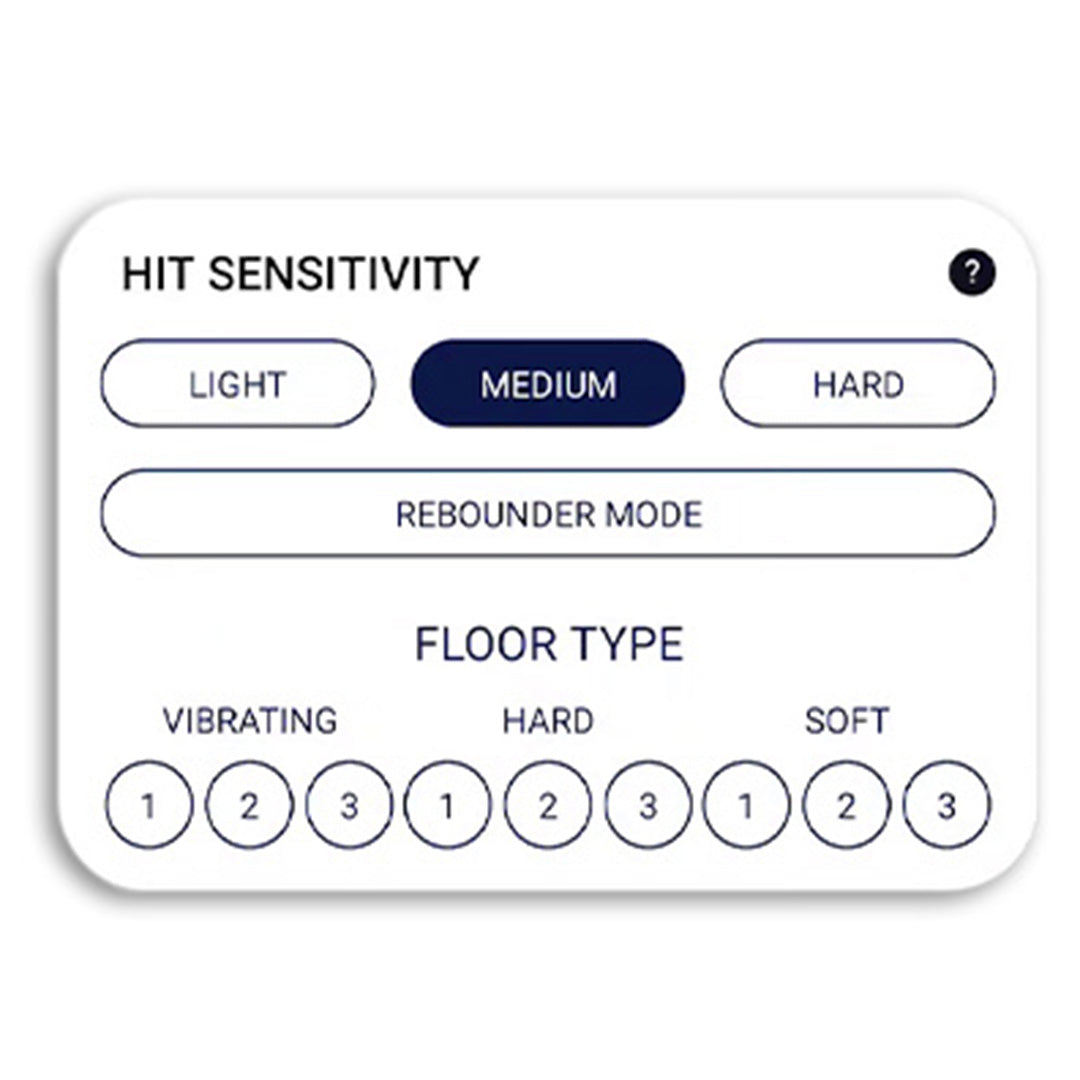
A special feature of the ROX Touch system is that you can change the sensitivity of the ROX Touch sensor in in 12 different levels. This is how it goes:
- Go to an appropriate program, and then navigate to the "ADDITIONAL SETTINGS"
- Look for the menu item "HIT SENSITIVITY"
- Select the desired sensitivity level. Play around with different levels to find the level that works best for you
The sensitivity of the sensor has been developed for different floor types and you can select 3 different settings for each floor type.
The different ROX Touch generations have different charging processes.
ROX Pro Generation1:
Charge your ROX Touch for 5 hours before using it for the first time. After that, 4 hours are enough.
1.Place the ROX Touch on the charging plates or in the case on the loading plates. Place it in the middle
2. insert the plug into the socket.
3. When charging, the ROX Touch flash in different colors.
4. When they are full, the flashing stops.
ROX Touch, ROXPro, ROXProX Laser new generation:
Charge your ROX Touch for 2.5 hours before using it for the first time. After that, 2 hours are enough.
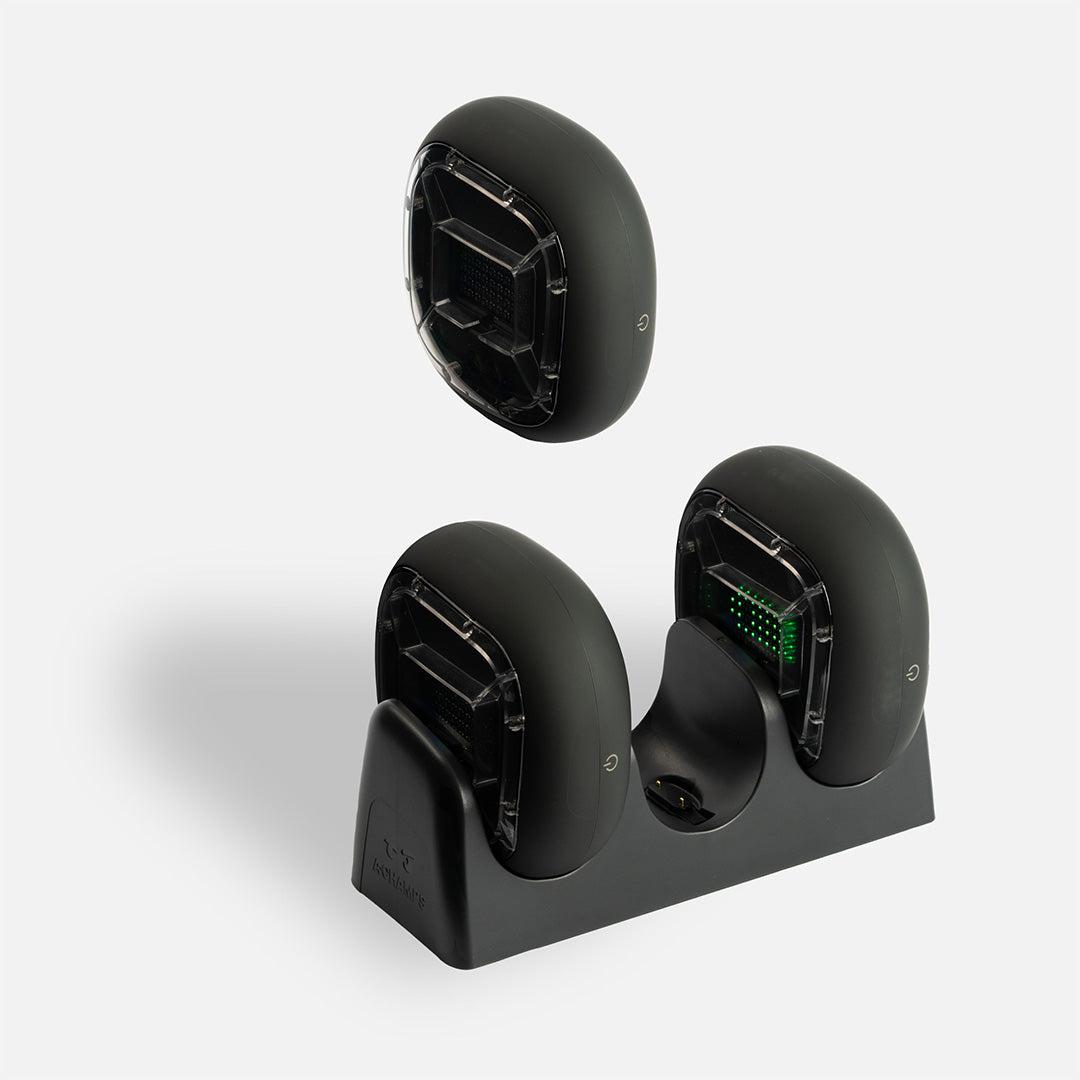
If you charge your ROX Touch with the ROX Touch base or the ROX Touch charging case:
1. Plug the power adapter into a power outlet
2. Place all ROX Touch in the charging station, the charging slot downwards, the front side of ROX Touch facing forward
3. ROX Touch flashes red (empty), yellow (half full) or green (full)
4. As soon as the ROX Touch stay green, they are fully charged. Take them from the station
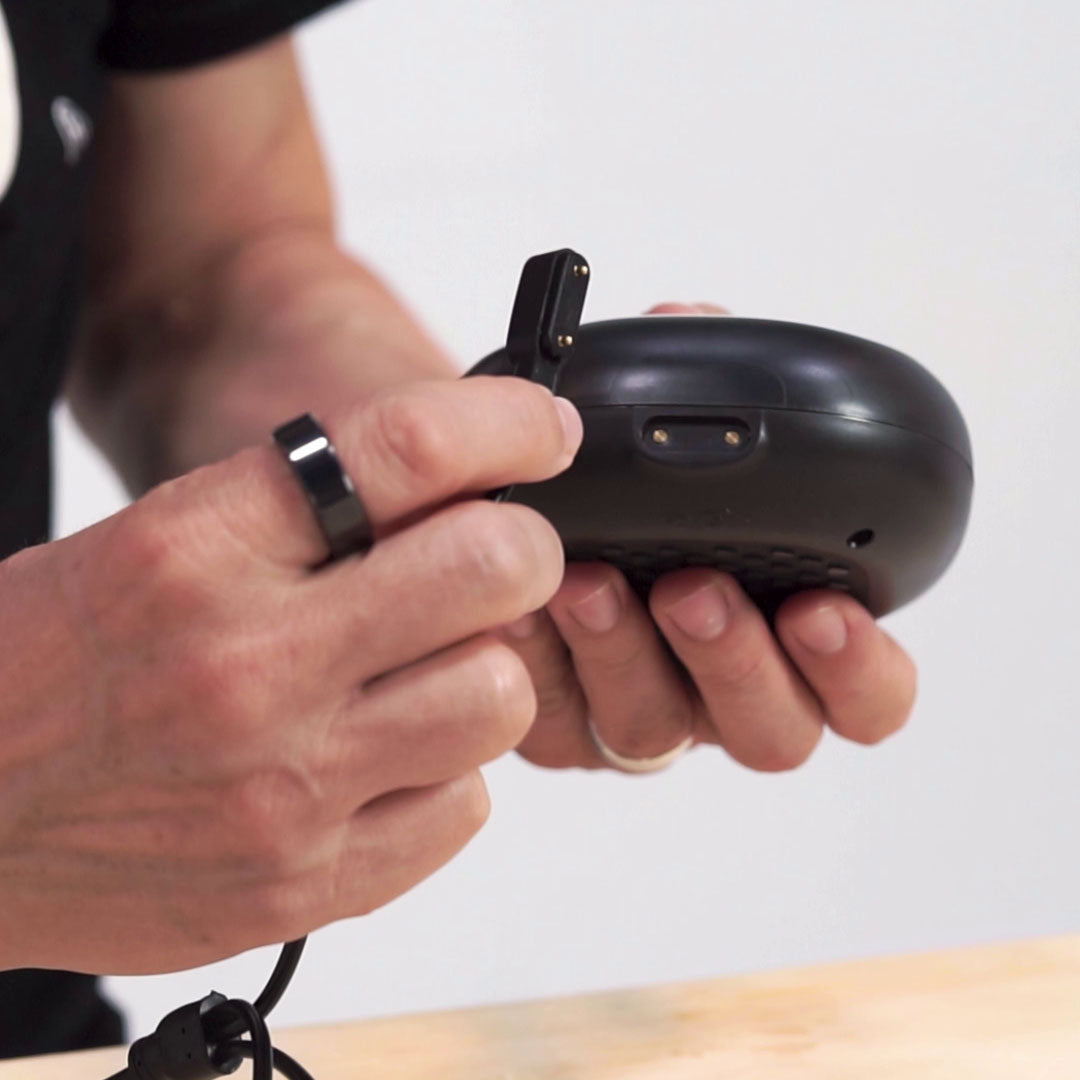
If you charge your ROX Touch with a charging cable:
1. Plug the power adapter into a power outlet
2.Insert the magnetic head of the cable into the charging slot of the ROX Touch. A notch in the charging slot shows you the correct direction of insertion
3. ROX Touch flashes red (empty), yellow (half full) or green (full)
4. As soon as the ROX Touch lights up green continuously, it is fully charged. Take him off the cable
Please do not leave the ROX Touch in the charging station overnight.
Battery life
ROX Pro Generation1:
ROXPro: 4 hours
ROX Touch, ROXPro, ROXProX Laser new generation:
ROX Touch: 7h
ROXPro: 7h 30min
ROXProX Laser: 5h 30min
ROX Pro Generation1:
Red - Low battery
Green - Fully charged
ROX Touch, ROXPro, ROXProX Laser new generation:
1. The first 5 minutes: flashing cycle 1s
2. After 5 minutes: flash cycle 5.5 s
3. Loading Colors
Red (<=40% charged) / Yellow (41-80%) / Flashing Green (>=81%), Full Green = 100% fully charged.
ALL ABOUT ROX TOUCH
- Download ROXPro App
- Open ROXPro App
- Tap the 'Create Account' button
- Type your username
- Type your email address
- Choose your password
- Read, agree to terms and the policy
- Press Confirm
- Choose your country and birth year
- Select what you do, and share your interests and goals.
- Tap the blinking ROX Touch 3 times
- You're automatically logged in to the App. Please take note and save your password.
We forget our passwords, it can happen to anyone and it's easy to recover.
- Open ROXPro App
- Tap 'forgot your password'
- Tap send reset code
- Tap the blinking ROX Touch 3 times
- Once you see the message 'code sent', go to your email box to check the validation code email, check the spam folder in case you don’t find the email
- Copy the code and paste it into the insert reset code space
- Input your new password
- Press 'confirm' and you're done
- You're automatically logged in to the App.
Please save your password.
- Go to More
- Tap Profile
- Tap Sign Out
- Go to More
- Tap Profile
- Tap Change Password
- Type your current password
- Type new password
- Confirm the new password
ANALYTICS
You can access it in the App by going to Analytics. You can also access the results cloud-based dashboard on the link below:
https://pro.results.a-champs.com/home
Use your login details from the ROX Pro App and monitor your progress.
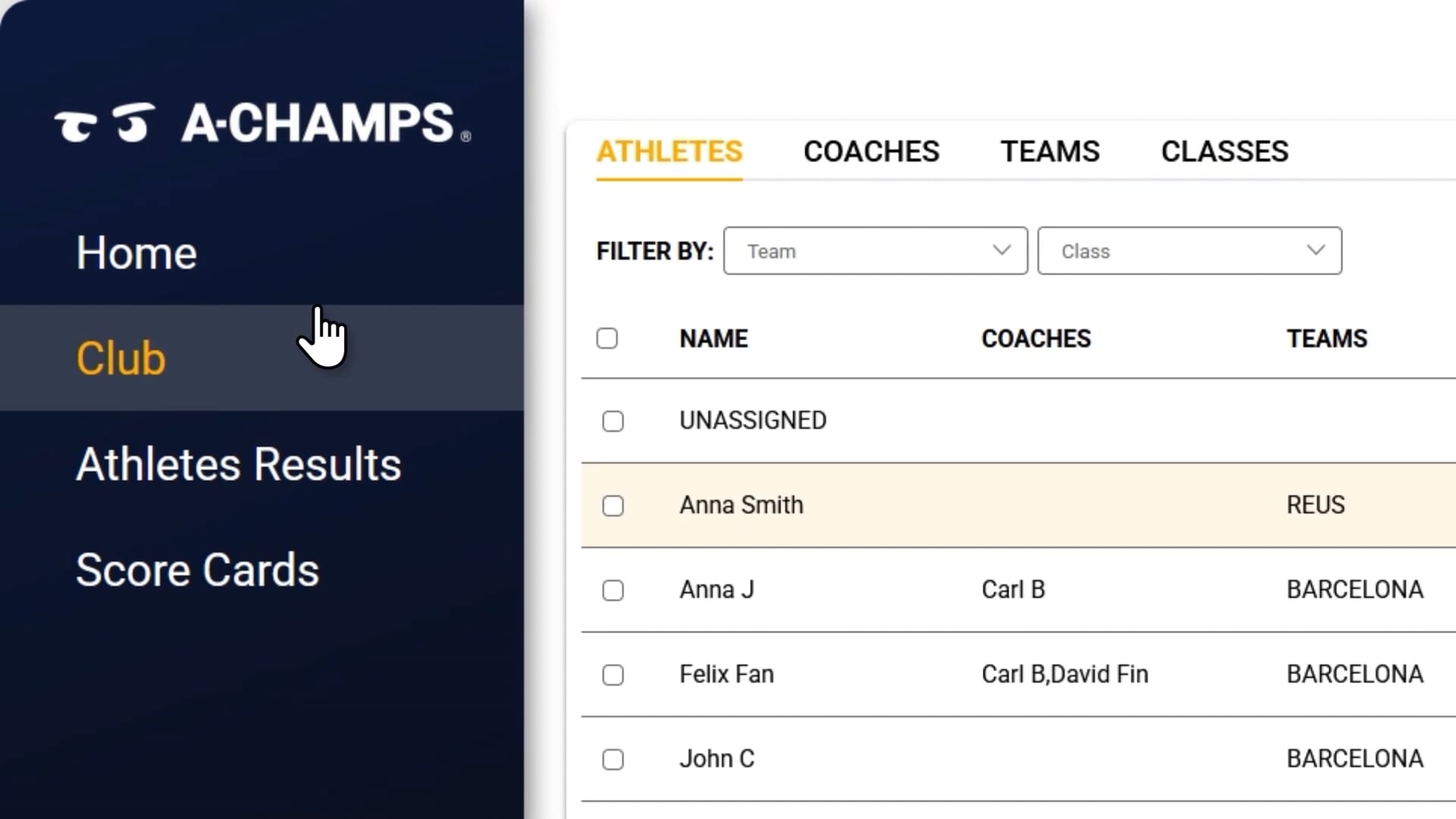
We have a Club Exchange Data Platform available. We can create an admin profile that lets you connect different accounts for coaches, athletes, parents, and other members of your team.
Please reach out to hey@a-champs.com for more information.
- After the program is done, tap assign results
- Select New Athlete
- Type the name, email and year of birth
- Tap Save
This is not available on the App at the moment. If you need to delete an Athlete, please let us know and we’ll do it for you.
TROUBLESHOOTING GUIDE
If your ROX Touch is not connecting
MY ROX PRO IS NOT CONNECTING
Try the following:
- Turn Bluetooth off and on
- Restart your phone
- Log out and back into the ROXPro App
- Reinstall the app
- Update to the latest app version
- Make sure your ROX Touch is not connected to another device
ONLY SOME ROX TOUCH CONNECT (ANDROID)
Android devices may limit connections.
To fix this:
- Go to More > Diagnostics
- Select ROX Touch Master Limitation
- Increase the number and save
- Clear your Bluetooth cache
ROX TOUCH NOT DETECTED ON IPHONE
If your ROX Touch is not showing up on your iPhone, this can usually be resolved with a quick reset.
Try this first:
- Delete the ROXPro App
- Reinstall the app from the App Store
- Log back in and try connecting again
If your ROX Touch is blinking red, not turning on, or not charging, try the steps below.
FOR ROX TOUCH GEN 1:
Step 1 (Recommended)
- Let the battery fully drain until the ROX Touch stops blinking
- Once it’s off, charge it for 5 hours
Step 2 (If Step 1 doesn’t work)
- Remove the battery
- Charge the battery only for 5 hours
- Insert it back into the ROX Touch and try again
FOR ROX TOUCH GEN 2:
Please contact our support team at hey@a-champs.com and include:
- Your order number
- A short video showing the issue
We’ll review it and assist you further.
For all technical problems that you cannot solve with the help of the "Frequently Asked Questions" presented here, it is important that you send us a fault diagnosis.
This works like this:
1.Please connect all ROX Touch with phone
2. Go to the "More" menu bar
3.Tap on "Diagnostics"
4.Select "Diagnostics"
5.Tap "Send"
6. Contact us at hey@a-champs.com and briefly explain your problem
If you have any questions that are not answered here, please get in touch. We're always happy to hear from you.
You can contact us via the in-App chat or at hey@a-champs.com